Image to video AI
Pick the image you want to animate. After you sign in, attach it in the chat, describe the motion, and Endless animates it into a short video with AI video models like Kling, Seedance and Veo.
What is image to video AI?
Image to video AI takes a still image and generates a short video that starts from it. You describe the motion, such as a camera push-in, a person turning their head or waves rolling in, and the model fills in the frames. The result keeps the look of your image while adding movement. Most image to video tools generate short clips, which suit social posts, ads and previews.
Teams use it because video performs well on social and in ads, but shooting video is slow and expensive. A product photo, an illustration or a generated image can become a moving clip in minutes. It is useful for social posts, ad variations, storyboards and mood videos. No camera or crew is needed.
Endless gives you several AI video models in one workspace, including Kling, Seedance and Veo, in the Video section and in chat. You upload the image, describe the motion and the agent runs the model. Each video is saved in your workspace with your other assets. You can ask for another take or a different model in the same chat.
How it works
- 01
Pick your image
Choose the still image you want to animate in the box above. Only its name goes into the prompt; the file is not uploaded from this page.
- 02
Sign in and attach the image
Create a free Endless account or sign in. Your workspace chat opens with the prompt already written. Attach the same image, add the motion you want and send.
- 03
Get your video and refine it
The agent animates the image with a video model and the result is saved in your workspace. Ask for another take, a different model or a new motion.
What people use it for
- 01
Animate product photos
Turn a product shot into a short clip with a slow rotation, a camera push-in or light moving across the surface. It gives you motion for social posts and product pages without a video shoot, using photos you already have.
- 02
Make social posts that move
Moving content tends to stop the scroll better than a still. Animate an illustration, a photo or a generated image into a short clip for Reels, TikTok or Shorts, then ask the agent to write the caption in the same chat.
- 03
Test ad variations
Create several motion versions of the same ad image and compare them. Try different camera moves or moods from one still, so you can test which version works before spending on production. Each version is saved in your workspace, so you can share the set with your team and pick the strongest one together.
- 04
Storyboard and pitch ideas
Bring a storyboard frame or concept art to life to show a client or team how a shot could feel. A moving frame communicates pacing and mood better than a static board, and it takes minutes rather than days. Each clip is saved for your team.
- 05
Animate generated images
Generate an image with one of the image models in Endless, then animate it with a video model in the same workspace. Both the image and the video are saved as assets, so the whole process stays in one place.
- 06
Bring old photos to life
Add subtle motion to a portrait, a landscape or an archive photo, such as a slight smile, moving clouds or a slow zoom. Keep the description gentle to stay close to the original image. Small motions tend to look more natural than large ones.
Frequently asked questions
Is image to video AI free?
You can start free. A free Endless account comes with the Free plan, which gives your workspace 100 credits when you create it and 50 credits every week. Each video generation spends credits from that balance. Paid plans add more credits if you generate video often.
How much does it cost to turn an image into a video?
Video generations spend credits per video. Longer videos and higher quality settings cost more, and the cost also depends on the model you choose. You can ask the agent for the cost before it runs, so you know what it will spend from your workspace balance.
Which AI video models can I use?
Endless includes several AI video models, such as Kling, Seedance and Veo, available in the Video section of your workspace and in chat. If you are not sure which to use, describe the shot and ask the agent to suggest a model that fits.
What is the best image to video AI?
It depends on the shot. Some models handle realistic people and faces better, others do stylized motion or camera moves well. Look for a tool that lets you try more than one model on the same image and compare. Endless fits because it puts several video models in one workspace and keeps every result as an asset.
What images work best?
Clear, well-lit images with a defined subject work best. Leave some space around the subject if you want camera movement. Describe one main motion at a time; asking for many things to move at once gives less predictable results. Upload the highest-quality version you have.
Who owns the videos I create?
Videos you generate are saved in your Endless workspace as assets, private by default, and you decide who to share them with. Use images you have the rights to, and check the terms of the model you use for any commercial use limits.
Can I edit the motion after the video is made?
You cannot edit a finished video frame by frame, but you can generate a new take. Change the description, try a different model or ask the agent to adjust the camera move, and compare the versions in your workspace. Each take spends credits.
Related posts
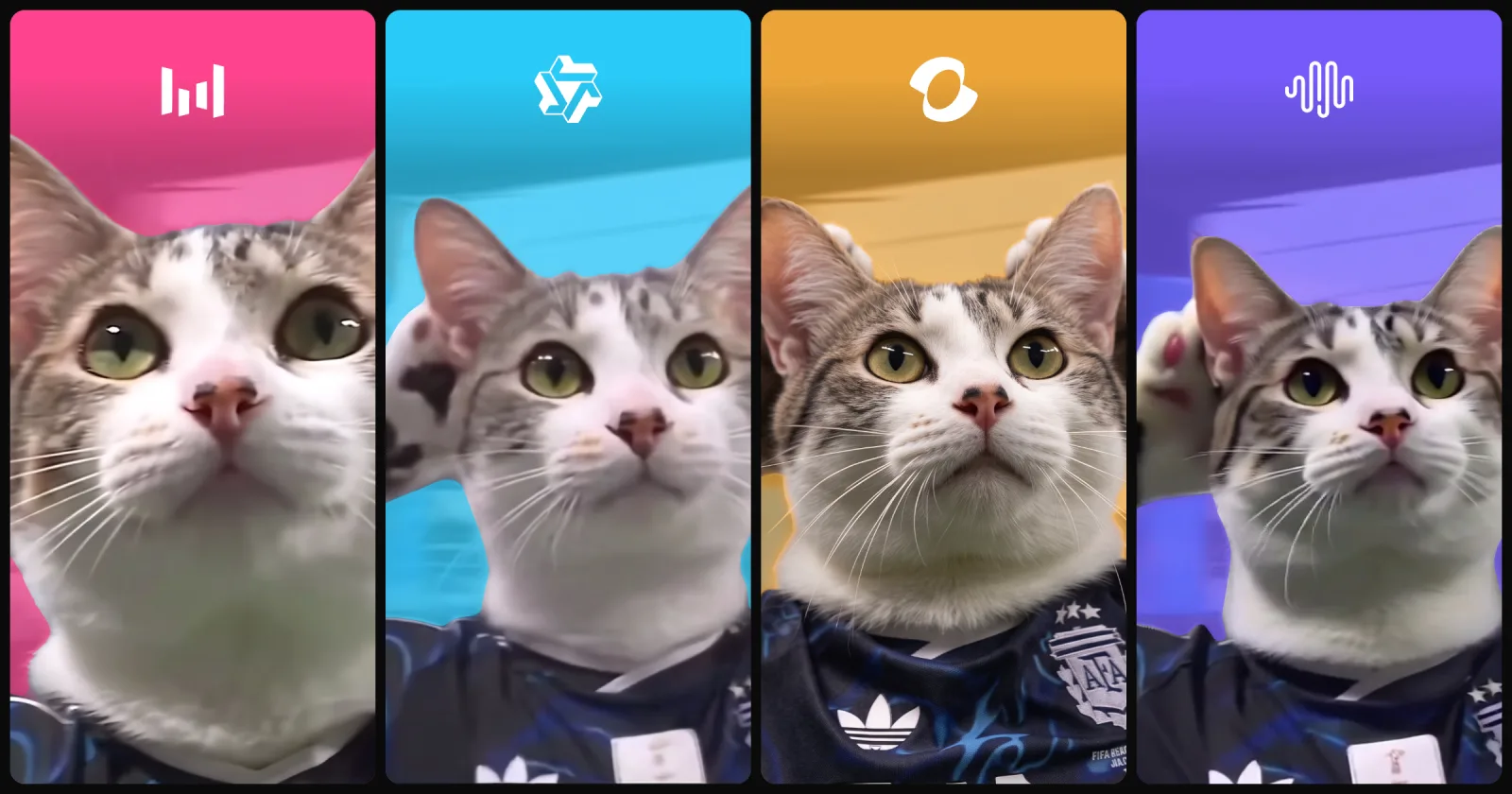
Best AI for video editing: does the most expensive model win?
Francisco, our CEO, put a cat into a stunning goal celebration and half the office wanted to do the same. We used it to check whether the most expensive model is the best editor: Seedance 2.5, Kling 4, Wan 3.0 Prime and MiniMax H3 on the same clips, compared on identity, fidelity, audio and credits.
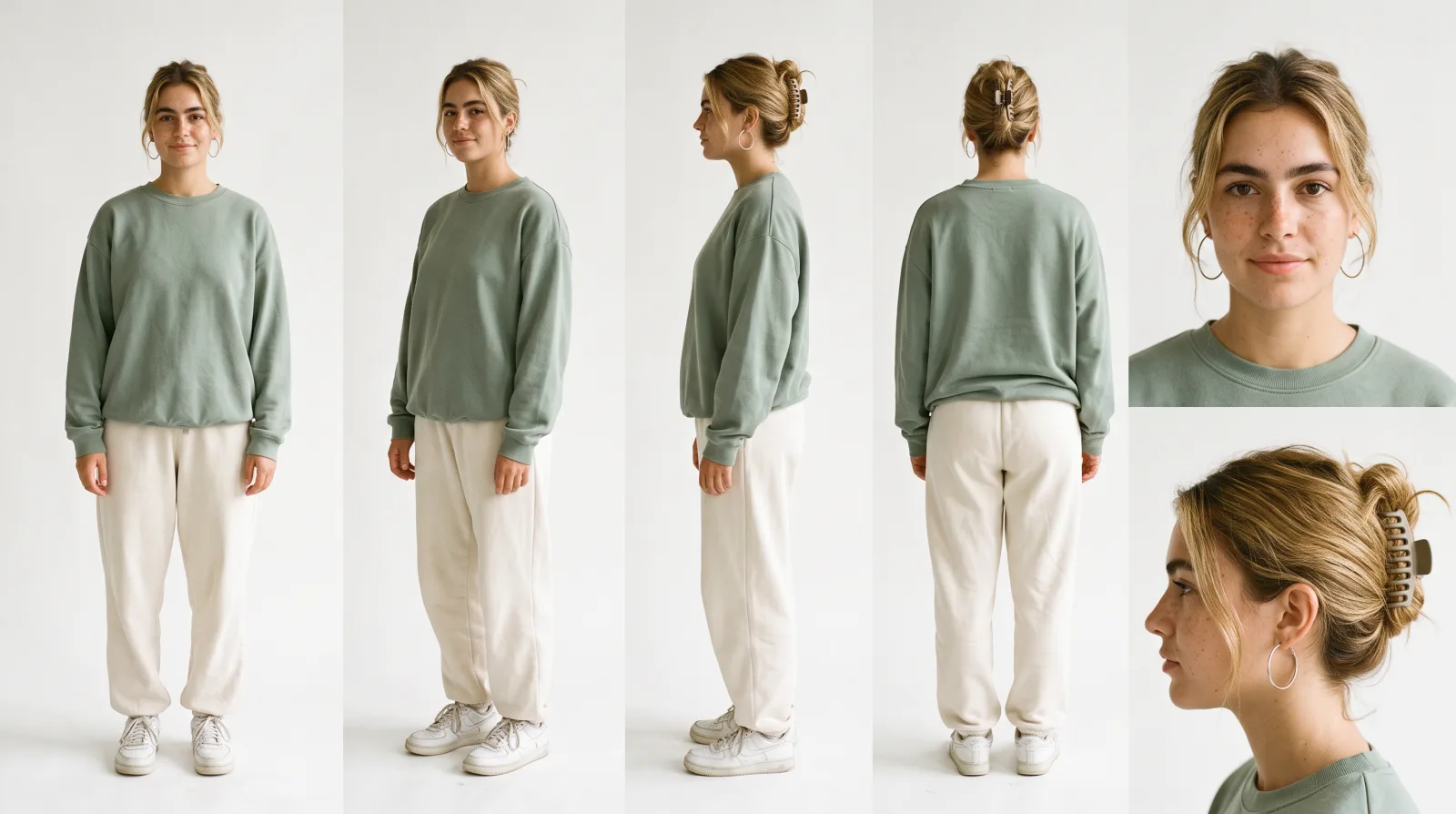
How to make AI UGC videos with a consistent creator: 8 videos, every prompt
How we built Mia, an AI UGC creator for a fictional matcha brand, and made eight UGC videos with her in Seedance 2.5. Every prompt, the three references behind them and what each step cost.
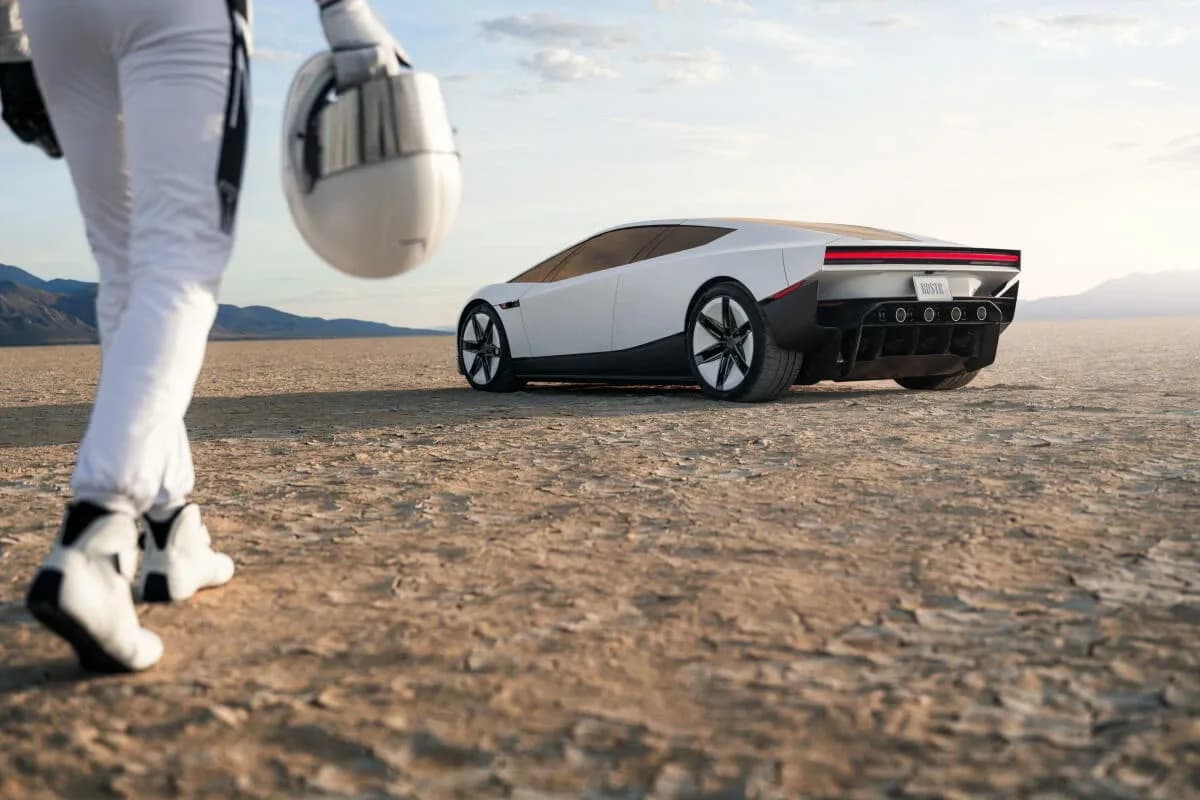
How to make an AI video hook: an 8-second supercar take-off, every prompt
How we made an 8-second street-interview hook where a supercar flies away, plus the B-roll, the inserts and the voiceover, all in Endless with Seedance 2.5. Every prompt, the car references and the four takes it took.
Related tools
AI video generator
Describe a scene and get a video clip from Kling, Seedance, Veo or Wan.
Open the tool: AI video generatorAI image generator
Describe a picture and get it from Nano Banana, FLUX, Seedream or GPT Image.
Open the tool: AI image generatorTalking photo
Turn a portrait photo and an audio track into a talking video with AI.
Open the tool: Talking photo
Give your next idea a place to grow.
Start free, create a project, and bring your brand’s references together. Or book a demo to explore Endless with your team.