Remove background from image
Pick a photo and Endless cuts the subject out onto a transparent background. After you sign in, attach the image in your workspace chat and the result is saved as a PNG with your other assets.
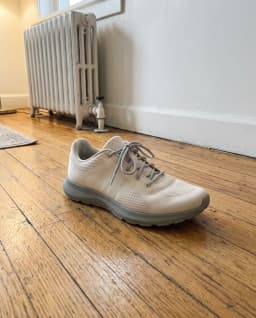
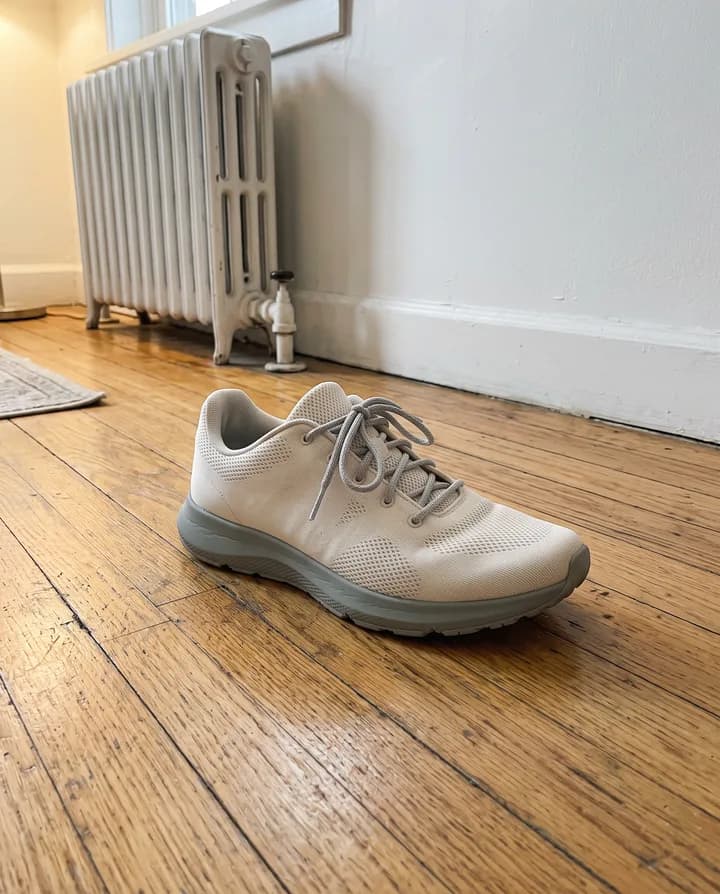
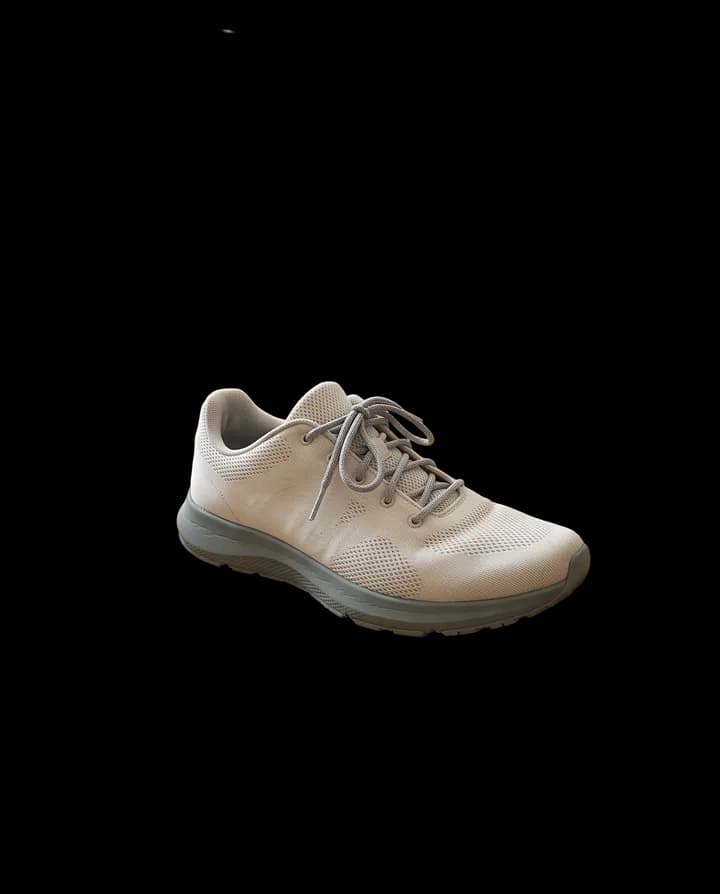
What does it mean to remove the background from an image?
Removing the background means separating the main subject of a photo, such as a person, a product or an object, from everything behind it. The background becomes transparent, so you can place the subject on any color, layout or scene. Doing it by hand means tracing edges in an editor, which is slow around hair, fur and small details.
People remove backgrounds for product listings, profile photos, stickers, slides, ads and design mockups. A transparent cut-out can be reused in many places, and it keeps a set of images consistent when every product sits on the same background.
Endless runs a background removal model from your workspace chat. You attach the image, the agent runs the Remove background model and the cut-out is saved as a PNG with a transparent background in your workspace assets. In the same chat you can ask for a new background or another edit.
How it works
- 01
Pick your image
Drop or choose the photo in the box above. A clear subject that stands apart from the background gives the cleanest edges.
- 02
Sign in and attach it again
Create a free Endless account or sign in. Your workspace chat opens with the prompt already written. The file stays on this page, so attach the image again in the chat and send.
- 03
Get the transparent PNG
The agent runs the Remove background model and saves the cut-out as a PNG in your workspace assets. Ask for a new background or another image in the same chat.
What people use it for
- 01
Clean up product shots
Cut products out of photos taken on a table, a shelf or a busy room, then place them on the plain background your store or marketplace asks for. Every product in a catalog can sit on the same background, so the listings look consistent.
- 02
Make profile photos
Separate yourself from the room you were photographed in and put the cut-out on a solid color or a new scene. It suits profile pictures for LinkedIn, team pages, speaker bios and badges.
- 03
Create stickers
Turn a photo of a pet, a person or an object into a cut-out with a transparent background, ready to use as a sticker or an emoji-style graphic in chats and social posts.
- 04
Build ads and social posts
Drop a transparent cut-out into an ad layout, a thumbnail or a story template. The subject stays sharp while you change the colors, text and layout around it.
- 05
Prepare slides and documents
Put people, products and objects into presentations without a white or cluttered box around them. A transparent PNG blends into any slide background.
- 06
Start a bigger edit
Remove the background first, then ask the agent in the same chat to place the subject in a new scene or to generate variations. The cut-out and every edit are saved as separate assets in your workspace.
Frequently asked questions
Related tools
Change image background
Replace the background of a photo with a new scene you describe.
Open the tool: Change image backgroundAI product photo generator
Turn one product photo into studio and lifestyle shots for your store and ads.
Open the tool: AI product photo generatorImage upscaler
Upscale an image 2x, 3x or 4x with AI and sharpen its detail.
Open the tool: Image upscaler
Give your next idea a place to grow.
Start free, create a project, and bring your brand’s references together. Or book a demo to explore Endless with your team.