Add a Santa hat to a photo with AI
Pick a photo and Endless puts a Santa hat on the people or pets in it. After you sign in, attach the photo in your workspace chat, say who gets a hat, and an image model adds it with the same light and shadows as the rest of the picture.
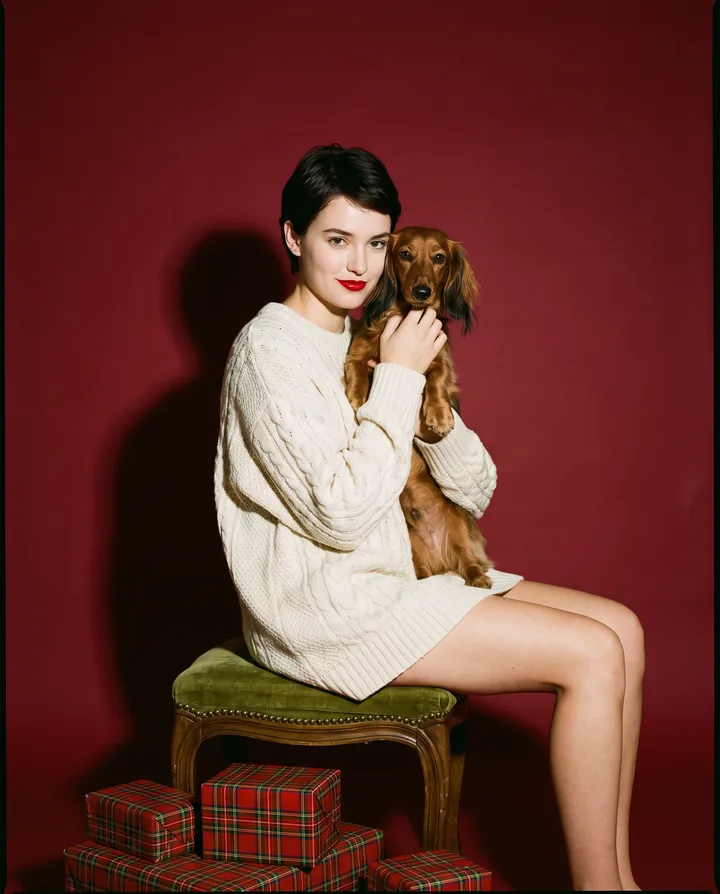
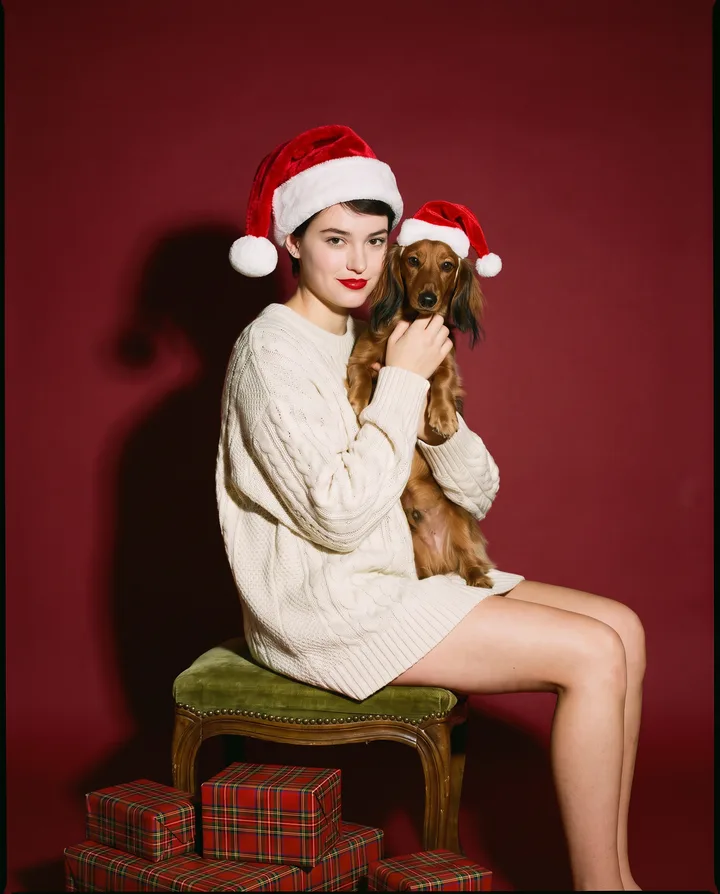
How does adding a Santa hat with AI work?
An image edit model looks at the photo, finds each head and draws a hat that fits its size, its angle and the direction of the light. The brim sits on the hair, and the hat casts a shadow where the room's light would put one. Faces, clothes and the background stay as they were.
Describe the hat if you want something other than the classic red one: a green elf hat, a knitted one, or one that sits a little crooked. Say who wears it too, such as "only the dog" or "everyone except the baby", and the agent adds that to the instruction.
In Endless you attach the photo in your workspace chat and the agent edits it with a model such as Nano Banana Pro. The version with the hat is saved as a new asset next to the original. From the same chat you can try another hat or turn the photo into a short video for a greeting.
How it works
- 01
Pick your photo
Drop or choose the photo in the box above. Heads that are fully in the frame, with some space above them, leave room for the hat.
- 02
Sign in and attach it again
Create a free Endless account or sign in. Your workspace chat opens with the prompt already written. The file stays on this page, so attach the photo again in the chat and send.
- 03
Say who gets a hat
Tell the agent who should wear one and which hat you want. It quotes the cost, edits the photo and saves it in your assets. If a hat sits wrong, ask for a fix in the same chat.
What people use it for
- 01
Christmas profile pictures
Add a Santa hat to your profile photo for Instagram, WhatsApp, LinkedIn or your team chat in December, and switch back in January.
- 02
Dogs and cats
Put a hat on your dog or cat without making them wear one. The model fits it between the ears.
- 03
Christmas cards
Give everyone in a family photo a matching hat for a printed card or a holiday message. Ask for a larger version if you plan to print it.
- 04
Team and brand posts
Add hats to a team photo, a mascot or a product shot for a holiday post on your brand's accounts.
- 05
Group photos
Choose who gets a hat in a group photo, or give each person a different one.
- 06
A holiday video
Ask the agent to turn the photo with the hat into a few seconds of video with an image-to-video model, for a story or a greeting.
Frequently asked questions
Can I add a Santa hat to a photo for free?
You can start free. A free Endless account comes with the Free plan, which gives your workspace 100 credits when you create it and 50 credits every week. Each edit spends credits from that balance, and the agent tells you the cost before it runs.
Can I add a Santa hat to my dog or cat?
Yes. The model places the hat on the animal's head and leaves the ears free. If there are several pets in the photo, say which one gets the hat, or give one to each.
Can I put hats on several people in one photo?
Yes. Say who gets one: everyone, only the kids, or the two people on the left. Small faces in the background get less detail, so crop the photo if the people you care about are far from the camera.
Will the rest of the photo change?
The agent asks the model to add only the hat and keep faces, expressions, clothes and the background as they are. Image models redraw the picture, so small differences can appear. If something changed that should not have, say what it is and ask for a new version.
Can I choose a different hat?
Yes. Describe it, such as a classic red Santa hat, a green elf hat, a knitted hat with a pompom or a hat in your brand's colors. You can also attach a photo of a hat and ask the agent to use that one.
What file do I get?
An image file in your workspace assets, ready to download. If you plan to print it, ask for a higher resolution: Nano Banana Pro outputs up to 4K.
Are my photos private?
Photos you attach and the versions with hats are saved in your workspace as assets, private by default, and you decide who to share them with. Use photos you have the rights to, and ask before you edit photos of other people.
Related posts
How to keep AI-generated images on brand (2026)
A method that works in any image tool: written visual rules, reference images with a job each, hex colors, the real logo, one prompt template and a review step. Then how Endless keeps it all in one project per brand.
The best Midjourney alternatives in 2026: features, pricing and limits
Leonardo, Ideogram, Adobe Firefly, Krea, Recraft, ChatGPT and Endless: what each one does differently from Midjourney, who it suits, what it costs and where it falls short.
From phone photos to brand content: the full guide
You shot photos with your phone, no studio, no production. Here's how to turn them into professional brand content using AI, step by step, with a vermouth bottle as the example.
Related tools
AI photo editor
Edit a photo by describing the change: remove an object, change a color, add something or restyle it.
Open the tool: AI photo editorPhoto to drawing
Turn a photo into a sketch, a cartoon, a caricature or an anime drawing.
Open the tool: Photo to drawingImage to video
Animate a still image into a short AI video. Describe the motion and pick a video model.
Open the tool: Image to video
Give your next idea a place to grow.
Start free, create a project, and bring your brand’s references together. Or book a demo to explore Endless with your team.