AI image extender
Pick a photo. After you sign in, attach it in your workspace chat and the agent extends it to the format you need with an image model like Nano Banana, keeping your photo in the middle and adding scenery around it.
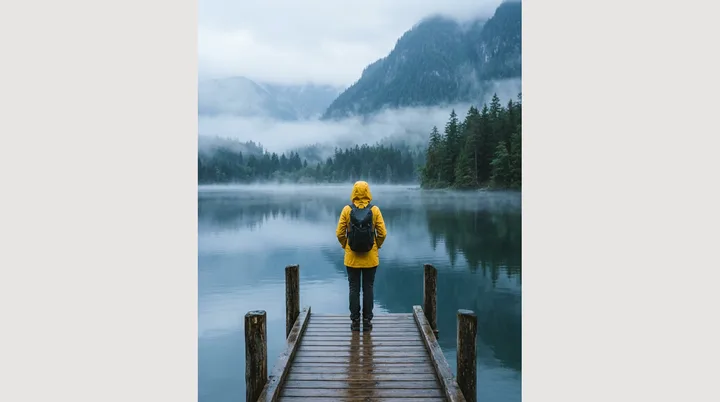
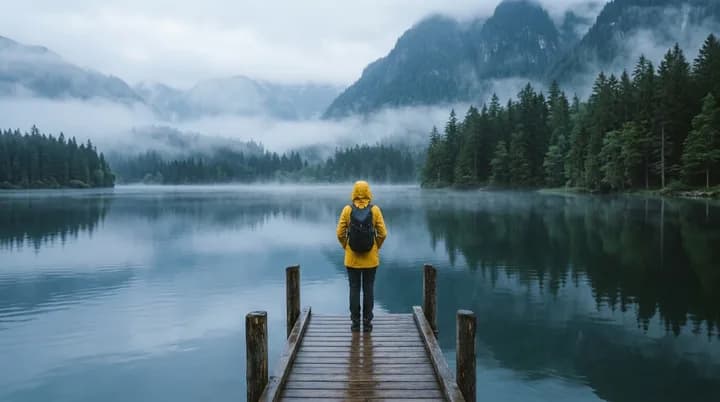
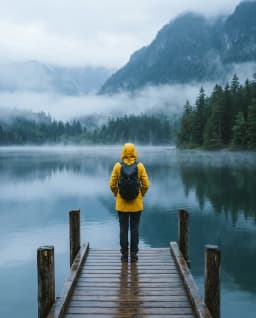
How do you extend an image with AI?
An image extender, also called uncrop or outpainting, makes a photo bigger by adding picture around it. The subject stays where it was and the frame grows, so a vertical phone photo can become a 16:9 banner, or a square shot can become a 9:16 story, without cropping anyone out.
The AI looks at what is at the edges, such as water, sky, a wall or a forest, and paints more of it into the new space. The model draws the new area itself, so each run comes out a little different, and you can ask for another take until the edges look right.
In Endless, the agent asks an image editing model such as Nano Banana 2.1 to redraw your photo at the new aspect ratio with the original in the middle. GPT Image 2.5 and FLUX 3 Image can do it too. Nano Banana 2.1 accepts formats from 21:9 and 16:9 to 1:1, 4:5 and 9:16, and very wide or tall ones like 4:1 or 1:8.
How it works
- 01
Pick your photo
Drop or choose the photo in the box above. Photos with simple edges, like sky, water, sand or a wall, are the easiest to extend.
- 02
Sign in and attach it again
Create a free Endless account or sign in. Your workspace chat opens with the prompt already written. The file stays on this page, so attach the photo again in the chat and send.
- 03
Download the result
The agent asks which format you need if you did not say, quotes the cost, extends the photo and saves it in your assets. Ask for another format or another take in the same chat.
What people use it for
- 01
Thumbnails and banners
Turn a vertical phone photo into a 16:9 image for a YouTube thumbnail, a channel banner or a website header.
- 02
Stories and reels
Make a horizontal photo tall enough for a 9:16 story or reel without cutting off the sides.
- 03
Room for text
Add more sky or background next to the subject so a title, a price or a logo has space to sit.
- 04
One photo, every size
Fit the same photo to 4:5 for an Instagram post, 3:2 for print or 21:9 for a wide header, without cropping the subject.
Frequently asked questions
Is the AI image extender free?
You can start free. A free Endless account comes with the Free plan, which gives your workspace 100 credits when you create it and 50 credits every week. Extending a photo with Nano Banana 2.1 at 1K resolution costs 9 credits per image at the current price, on every plan including Free. The agent tells you the cost before it runs.
What is the difference between extending and upscaling an image?
Extending, or uncropping, adds new picture around the edges and changes the shape of the frame. Upscaling keeps the same frame and adds pixels, so the photo gets larger and sharper. For a bigger, sharper version of the same picture, use the AI image upscaler. You can do both in one chat: extend first, then upscale.
How is this different from the AI photo editor?
The AI photo editor changes what is inside the photo, such as a color, an object or the light, and keeps the frame. This page keeps the photo and makes the frame bigger. To move the subject to a different place altogether, use Change image background.
Which formats can I extend a photo to?
Nano Banana 2.1 accepts 21:9, 16:9, 3:2, 4:3, 1:1, 4:5, 3:4, 2:3 and 9:16, plus very wide or tall formats like 4:1, 1:4, 8:1 and 1:8. Say the ratio in the chat, or the place it is for, such as a YouTube thumbnail or an Instagram story.
Will my original photo stay the same?
The agent asks the model to keep your photo in the center and add scenery around it. The model redraws the whole picture at the new size, so small details like faces, text or logos can shift a little. Compare the result with your original and ask for another take if something changed.
Which AI model extends the image?
Nano Banana 2.1 by default. You can ask the agent for GPT Image 2.5 or FLUX 3 Image instead and compare the results. Each one gets your photo and the new aspect ratio, with the instruction to keep the original in the middle.
Are my photos private?
Photos you attach and the results made from them are saved in your workspace as assets, private by default, and you decide who to share them with. Use photos you have the rights to.
Related posts
The best Midjourney alternatives in 2026: features, pricing and limits
Leonardo, Ideogram, Adobe Firefly, Krea, Recraft, ChatGPT and Endless: what each one does differently from Midjourney, who it suits, what it costs and where it falls short.
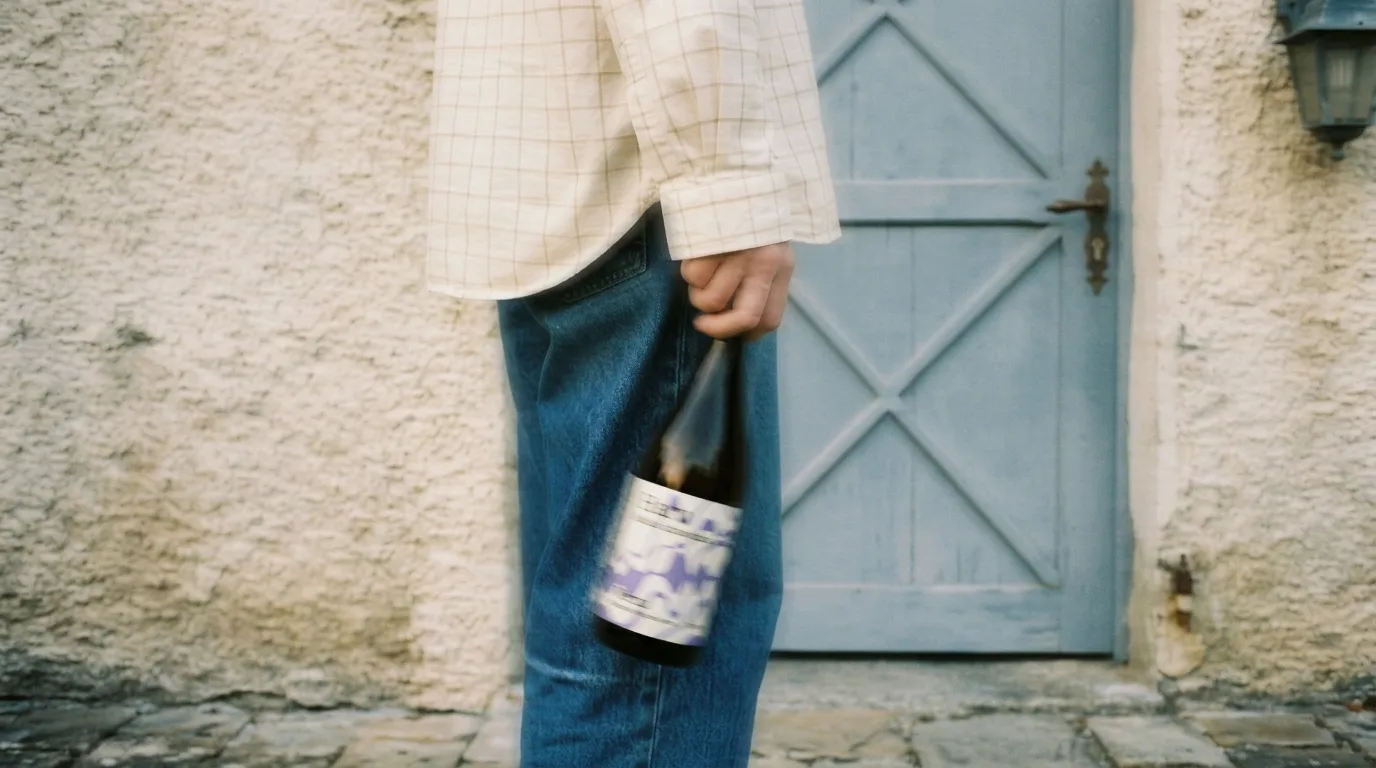
From phone photos to brand content: the full guide
You shot photos with your phone, no studio, no production. Here's how to turn them into professional brand content using AI, step by step, with a vermouth bottle as the example.
Four image models in February: does any of them actually beat Nano Banana Pro?
Recraft V4, Seedream 5.0, and FireRed all shipped in the same month. One only generates, one only edits, the other two do both. We tested them with the same prompts to see if there's a real reason to switch.
Related tools
Image upscaler
Upscale an image 2x, 3x or 4x with AI and sharpen its detail.
Open the tool: Image upscalerAI photo editor
Edit a photo by describing the change: remove an object, change a color, add something or restyle it.
Open the tool: AI photo editorChange image background
Replace the background of a photo with a new scene you describe.
Open the tool: Change image background
Give your next idea a place to grow.
Start free, create a project, and bring your brand’s references together. Or book a demo to explore Endless with your team.