How to keep AI-generated images on brand (2026)
A method that works in any image tool: written visual rules, reference images with a job each, hex colors, the real logo, one prompt template and a review step. Then how Endless keeps it all in one project per brand.

To keep AI-generated images on brand, stop describing the brand from scratch in every prompt. Write the visual rules down once as instructions a model can follow, attach real reference images (the product, the logo, recurring characters, a few approved photos) and say what each one is for, give colors as hex codes, put the real logo in instead of letting the model draw one, reuse one prompt template, and check every image against a short list before it goes out. Then keep the rules and references where the team generates, so a new chat or a new teammate starts from them.
Images drift because each prompt starts from the model's own defaults: its idea of good light, its favorite colors, its version of your product. Reference images close most of that gap, and the number a model accepts varies a lot. In Endless it goes from none for Recraft V4.1 to 16 for GPT Image 2.6 and MiniMax H3 Image.
This guide is the method, step by step, with prompts you can paste into any image tool, and then how it works in Endless. We make Endless. If you are choosing a tool that stores brand guidelines, we compared seven of them in a separate guide.
Who this is for
Marketing teams, agencies and in-house designers who make images for a brand with AI and need several people to get the same look. If you manage several clients, every step below applies once per client.
How we put this together
The model facts (how many reference images each model takes, how it edits, what its guide recommends) come from the prompt guides on each model's page on endless.app/models, which cite the model makers' own documentation. We read them on 25 November 2026. The other facts come from each company's own pages in November 2026, and we read the pages that AI assistants cite most for this question to see what they leave out.
Step 1: write the visual rules as instructions
Brand books describe a feeling: warm, modern, confident. A model can't act on an adjective, so rewrite each one as something visible in a photo.
| The brand book says | An instruction a model can follow |
|---|---|
| Warm | Soft daylight from the left, warm white balance, cream and terracotta tones |
| Premium | One product, centered, a lot of empty space, matte surfaces, no props |
| Bold | High contrast, brand red #E63B2E on large areas, hard shadows |
| Authentic | Candid, eye level, real skin texture, everyday location, no studio backdrop |
| Clean | Plain light background, two colors at most, nothing in the frame that isn't the subject |
Add two short lists. The never list holds what the brand doesn't show: neon, gradients, stock smiles, text baked into the photo, competitors' products. The formats list says what you deliver: 4:5 for the feed, 9:16 for stories, 16:9 for the web. Keep the whole spec to one page.
Step 2: choose reference images and give each one a job
A photo of the product leaves the model less to guess than a description of it. Build a small, approved set:
- The product on a plain background, from two or three angles.
- The logo file.
- A clear front photo of each recurring character, mascot or spokesperson.
- Three to five approved images that show the light, color and framing you want.
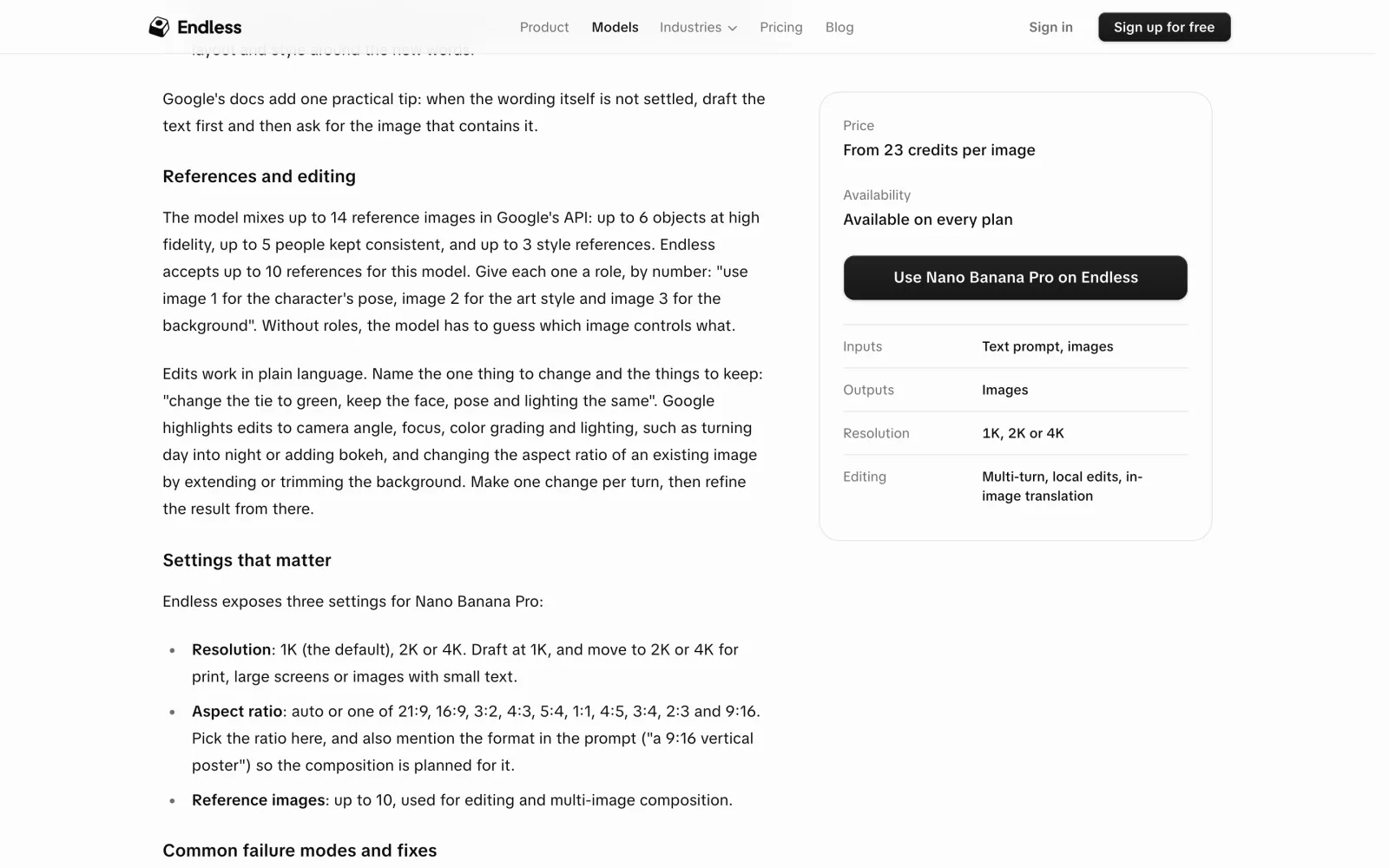
Then attach only what a shot needs, number the images and give each one a role. The Nano Banana Pro guide puts it plainly: Google's API mixes up to 14 reference images (up to 6 objects, up to 5 people and up to 3 style references), Endless accepts up to 10, and "without roles, the model has to guess which image controls what."
A prompt that does this:
When the result mixes references up, the Krea 3 and Muse Image guides give the same fix: refer to each image by its position and by what it shows. The Muse Image guide adds one more: drop any image the shot doesn't need.
Step 3: keep characters and products the same across a campaign
Images that match across a whole campaign take a few habits, all from the model guides:
- Start every image from the original reference. The Nano Banana 2.1 guide says to re-attach the original instead of editing an edit of an edit, which is where faces drift.
- Describe them with the same words every time. Kling Image v4's guide adds a line from Kling's own storyboard prompts: "keep their facial features, hairstyles and clothing consistent, and do not redesign their appearances."
- Edit one thing per round and say what stays. "Change only the lid, keep the jar, the label and the background exactly the same" (Nano Banana 2.1).
- Use a mask for one region. GPT Image 2.6 takes a mask, white where the image may change and black where it must stay. OpenAI recommends its Sunburst variant when an edit must keep a character or product consistent.
- Check faces anyway. Google's model card for Nano Banana 2.1 says consistency between the input and the output is still not always perfect.
Step 4: give colors as hex codes, and keep the logo real
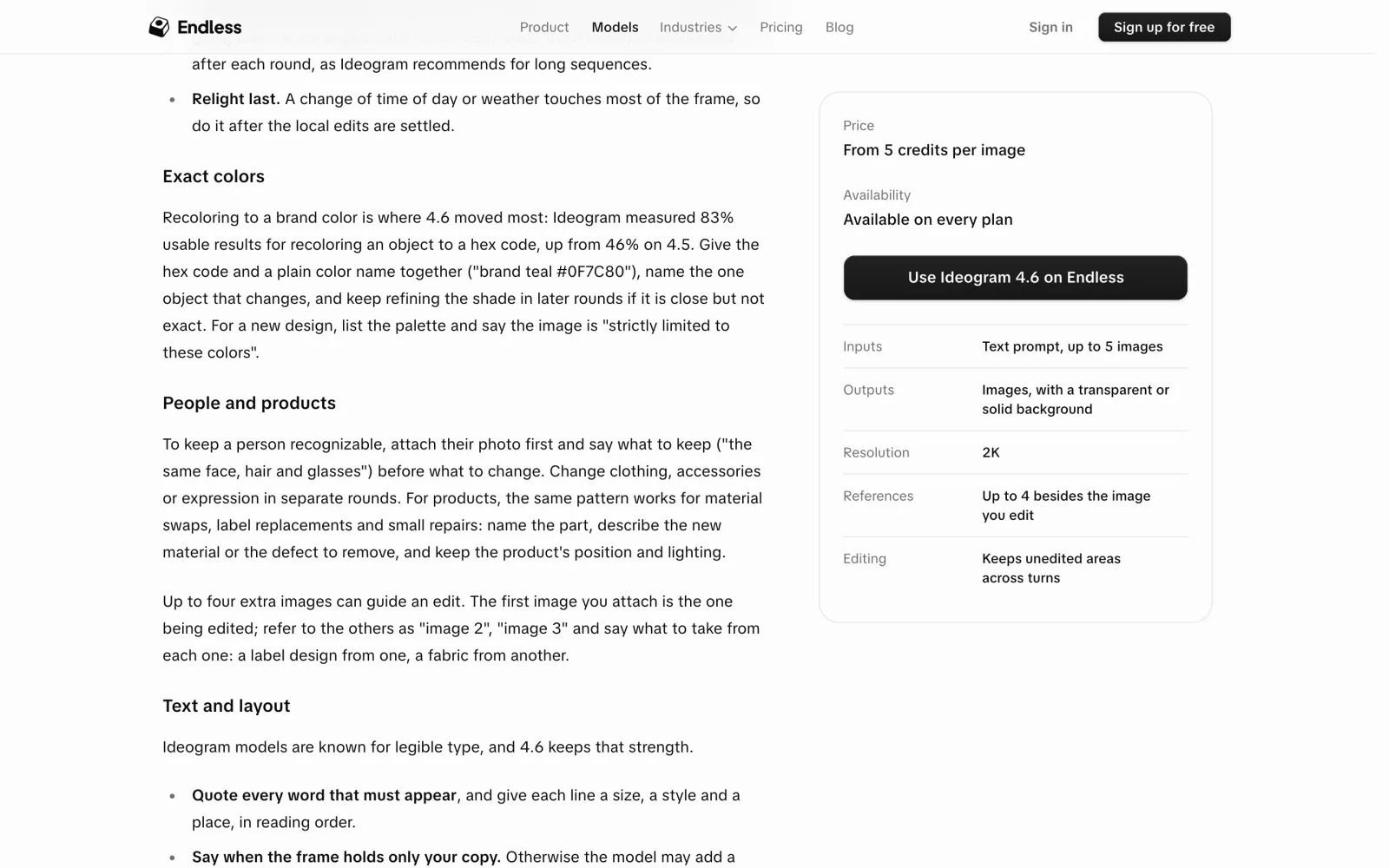
Colors. Give the hex code together with a plain color name, and tie it to one object: "brand teal #0F7C80 on the backpack". The FLUX 3 Image guide asks for exactly that pairing of a hex code and a named object. For a new design, list the palette and say the image is "strictly limited to these colors", as the Ideogram 4.5 and 4.6 guides recommend. Ideogram 4.6 is the model that improved most here: Ideogram measured 83% usable results when recoloring an object to a hex code, up from 46% on 4.5. If a shade comes out close but not exact, repeat the hex code with its name and run another round on the result.
The logo. Don't ask a model to draw your logo from a description; it will invent a similar one. There are two safe ways:
- Attach the real logo file and say where it goes. The Nano Banana Pro guide's example: "Use the logo in image 1 and apply it to a canvas tote bag, a paper coffee cup and a delivery box", printed to follow each material. FLUX 3 Image's: "Put the logo from image 2 on the side of the delivery van in image 1 as a painted decal that follows the curve of the door."
- Leave the logo and type out, then add them in a design tool. Ask for "no text, no logos" and an empty area where the headline goes. Use this for anything where clear space, exact typefaces or legal lines matter.
Either way, read the result letter by letter. The Recraft V4.1 guide says to check the spelling of a logo before you use it. When you need a product or logo as a cutout, Ideogram 4.6, Seedream 5.5 and GPT Image 2.6 return transparent backgrounds.
Step 5: turn it into one prompt template
The team should change only the subject. Everything else stays fixed and comes from Step 1:
Two more habits from the guides. Name a style concretely: the FLUX 3 Image guide says "Shot on Kodak Portra 400, natural grain" gives more direction than "vintage". And when text must appear, put the exact words in quotes and say where they go and how they look.
Step 6: review every image before it's published
Give one person the final yes, and have them check:
- Product: shape, label and colors match the reference.
- Logo: it's the real file, every letter is right, it has its clear space.
- Colors: next to the hex codes, not from memory.
- Text: every word spelled as quoted.
- People: faces, hands and anatomy.
- The never list: nothing on it made it in.
- Rights: no real person's likeness and no other company's marks without permission.
Save the prompt and the references that made each approved image next to it. When the campaign needs another image, you start from what worked.
Step 7: store the rules where the team actually generates
A brand PDF nobody attaches to a prompt changes nothing. The spec, the reference set, the template and every correction you make along the way should sit where people generate, so a new chat starts from them. There are three common ways to do it:
| Where the rules live | Good for | The catch |
|---|---|---|
| A shared doc and a folder of references | Any tool, no setup | Each person has to paste the rules and attach the files every time |
| A tool that stores brand rules | Text, images and video from the same rules | Each tool stores different things; see our comparison |
| A custom model trained on your images | A fixed illustration or photo style | Needs a training set of images for each style or character |
On the third option: Adobe Firefly's custom models train on 10 to 30 images as an illustration style, a photographic style or a character. As of November 2026 they are in public beta for Creative Cloud customers on paid individual plans and on Creative Cloud Pro and Pro Plus for teams.
Which models take reference images
From each model's page on endless.app, November 2026. The guides don't publish one score for how faithfully each model follows references, so the last column says what each guide recommends it for.
| Model | Reference images in Endless | Editing | What its guide recommends it for |
|---|---|---|---|
| Nano Banana Pro | Up to 10 | Multi-turn, local edits | Hard briefs with many references; Google's API keeps up to 5 people consistent |
| Nano Banana 2.1 | Up to 10 | Multi-turn, with consistent characters | Everyday generation and edits; a campaign character who has to look the same every time |
| GPT Image 2.6 | Up to 16, plus a mask | Prompt edits, or masked edits to one region | Edits that keep a character or product consistent (Sunburst variant) |
| MiniMax H3 Image | Up to 16 | Prompt edits, restyles, multi-image | Scenes composed from many product or people references |
| FLUX 3 Image | Up to 10 | Generation and edits in one model | A product hero with the logo and copy in set positions; packaging |
| Seedream 5.5 | Up to 10 | Multi-round edits that keep the rest intact | Long chains of small edits without drift; product cutouts |
| Kling Image v4 | Up to 10 | Prompt edits and multi-image combinations | Recurring characters across a set; product scenes at up to 8K |
| Ideogram 4.6 | Up to 4, besides the image you edit | Keeps unedited areas across turns | Recoloring to a brand hex code; transparent backgrounds; legible type |
| Recraft V4.1 | None | Not listed | Logos, icons and brand graphics as SVG; the palette goes in the prompt |
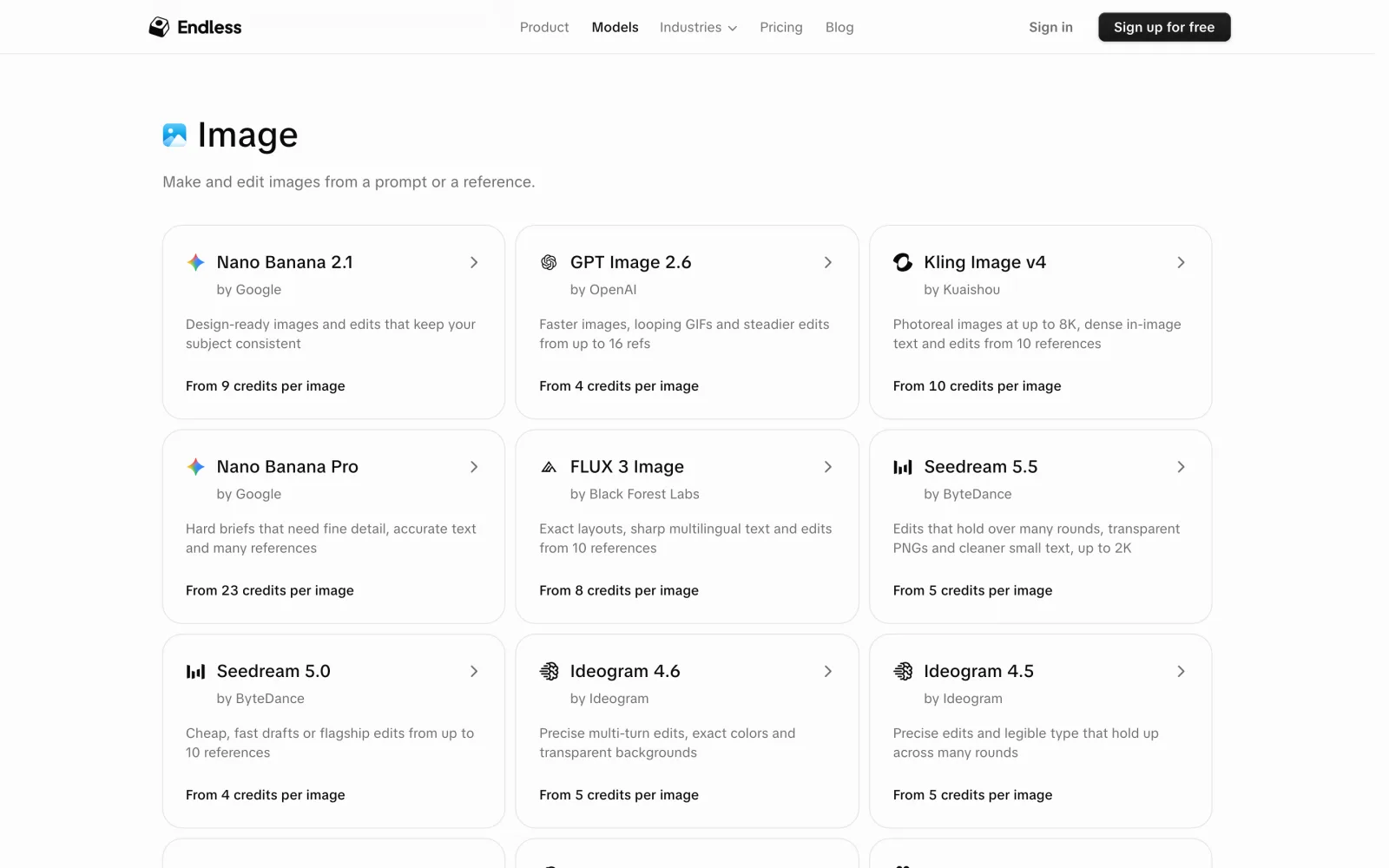
Where to start: the Nano Banana 2.1 page calls it the better default for most daily generation and editing, and says to move to Nano Banana Pro "when a brief has dense text, many references or very strict detail." Add Ideogram 4.6 when an exact brand color matters, and Recraft V4.1 for vector logos and icons, knowing it takes no reference images.
The same method for captions and tone
Social posts need the voice to match as well as the picture, and the method carries over. Write the voice as rules (formal or informal address, words the brand never uses, emoji or none, length per network), give 10 to 20 real posts as examples, add a short list of what the brand never sounds like, and review before publishing. A post for LinkedIn and one for Instagram can share the rules and differ in length and format.
How it works in Endless
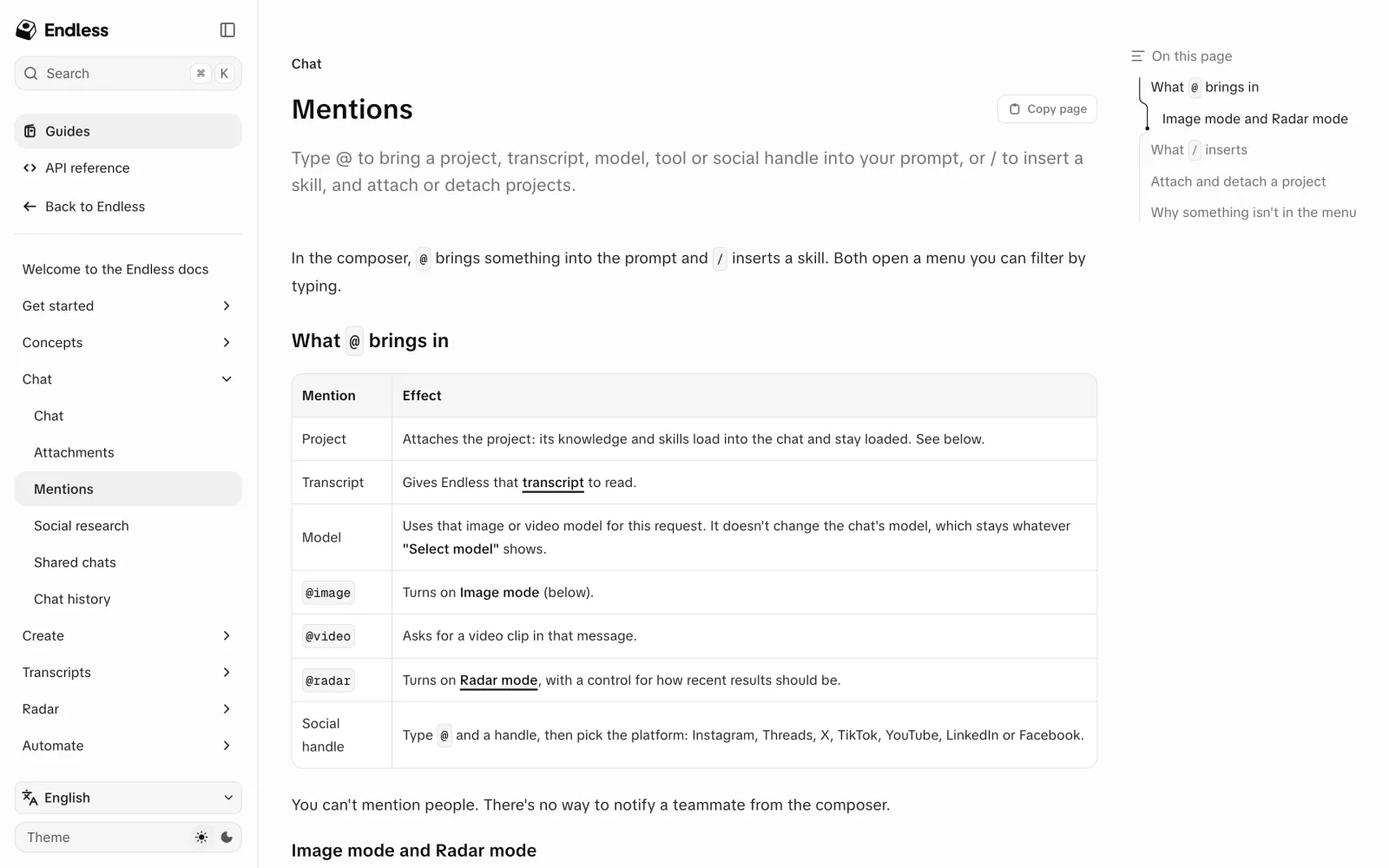
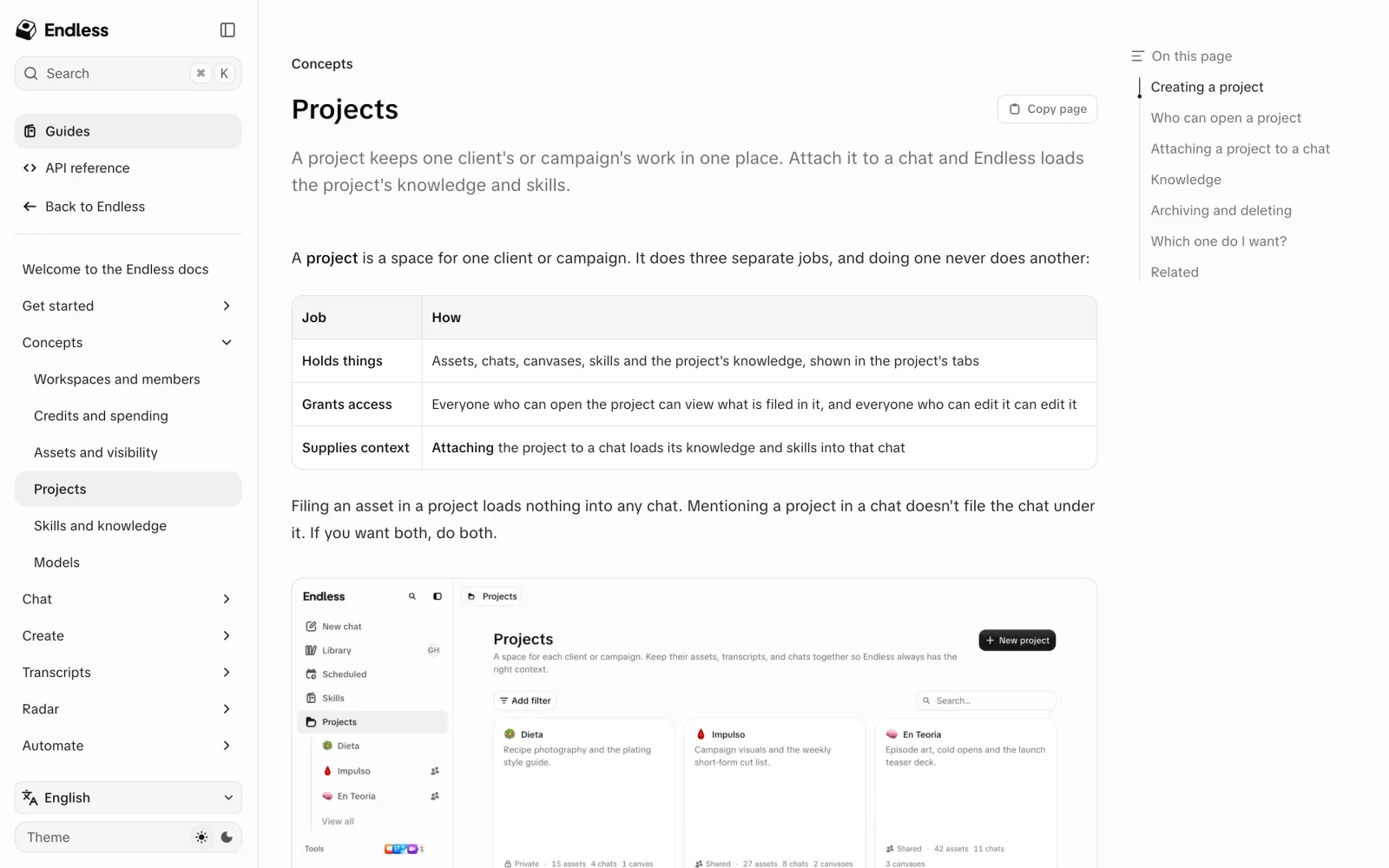
Each brand or client gets a project, and the steps above map onto it:
- The visual rules (Step 1) go in the project's Knowledge. "Create with Endless" builds the project and its knowledge from the brand's website or Instagram profile, and you correct what it wrote. When you state a lasting rule in a chat with the project attached ("never put text over a face"), Endless saves it to the knowledge and shows a "Saved to" card, so the next person gets it too.
- The references (Steps 2 and 3) become elements: the product, the logo or a character, saved with its photos in the project's Elements tab. Endless writes each element's name, description and usage rules, and you correct them. Tag an element with @ in any prompt and Endless passes the model the photos it needs, within the number of reference images that model takes.
- The template (Step 5) loads with the project. Type @ and the project's name in a chat and its knowledge stays loaded for the rest of the conversation, on every device. Endless can also attach a project itself when the work is clearly about one, and says so.
- The model is your choice per image: @ a model in the prompt, or pick it on the Image page, which tells you when a model takes no references.
- The voice can come from what the brand publishes: the same chat reads public posts on Instagram, TikTok, YouTube, X, LinkedIn and other networks, and you can save the rules it finds to the same project.
Everyone who can open the project works from the same knowledge and elements, and the whole workspace spends from one credit balance. The Free plan holds up to 3 projects; paid plans have no project limit (pricing).
Where Endless falls short. The rules apply in chats where the project is attached, so a chat without it starts from the model's defaults. An element only reaches models that take reference images; Recraft V4.1 takes none. There's no approval step or publishing calendar, so Step 6 stays with your team. It doesn't train a custom style model the way Adobe Firefly does. Layouts with exact typography still finish better in a design tool. And no model keeps a face or a label perfect every time, so the review still matters.
FAQ
How do I keep AI-generated images on-brand for my company?
Write the visual rules as concrete instructions, attach real reference images with a role for each, give colors as hex codes, put the real logo in from a file or add it afterwards, reuse one prompt template, and review every image before it's published. Store all of it where the team generates, so nobody starts from zero.
How many reference images should I use?
As many as the shot needs, each with a job. Limits in Endless go from 4 (plus the image being edited) on Ideogram 4.6 to 16 on GPT Image 2.6 and MiniMax H3 Image; Nano Banana Pro, Nano Banana 2.1, FLUX 3 Image, Seedream 5.5 and Kling Image v4 take up to 10. Extra images the shot doesn't use make it more likely that the model mixes them up.
Which AI image model follows reference images best?
The model guides don't publish a shared score. Nano Banana Pro is the one Endless's own guides recommend for many references and strict detail, GPT Image 2.6's Sunburst variant for edits that must keep a character or product consistent, and Ideogram 4.6 for exact brand colors.
Can AI put my real logo on an image?
Yes, if you attach the logo file as a reference and say where it goes, with a model that takes references, such as Nano Banana Pro or FLUX 3 Image. Don't describe the logo in words and expect the model to redraw it. For layouts with strict clear space and typefaces, generate the image without the logo and place it in a design tool.
Is there an AI that respects my brand's tone for social media content?
Several tools store a brand voice; we compare seven in this guide. In any of them, the voice holds when you write it as rules, give 10 to 20 real posts as examples and review before publishing. In Endless the voice, the visual rules and the reference images live in the same project, so captions and images come from the same place.
Should I train a custom model on my brand?
When you need one fixed illustration or photo style, used by many people without attaching references each time. Adobe Firefly's custom models train on 10 to 30 images and were in public beta in November 2026. For products, logos and characters that change from campaign to campaign, reference images are faster to update.
Bring this to your team
Start creating with Endless: chat, image, video, transcripts, and social insight in one workspace.
Keep reading
The best AI tools that remember your brand guidelines (2026)
Jasper, Writer, Typeface, Canva, StoryChief, Frontify and Endless, compared on where each one keeps your brand, how many brands it holds, and whether it makes text, images and video with it.
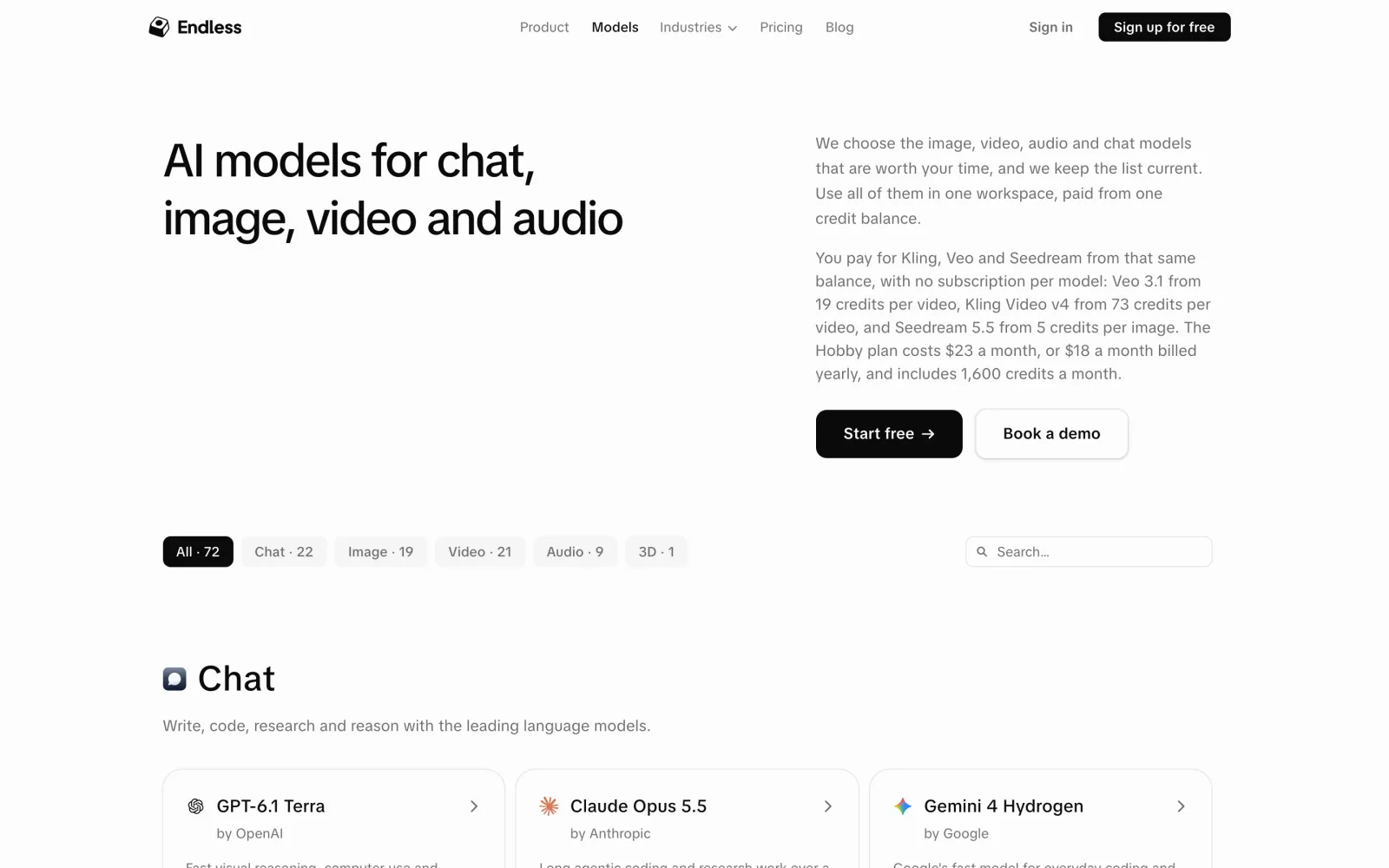
The best apps to use ChatGPT, Claude, Gemini and Grok with one subscription (2026)
Poe, T3 Chat, ChatLLM, Mammouth, Writingmate, Magai, TypingMind, OpenRouter and Endless compared: which models each one includes, how limits work, how a team pays, and whether it also makes images and video.
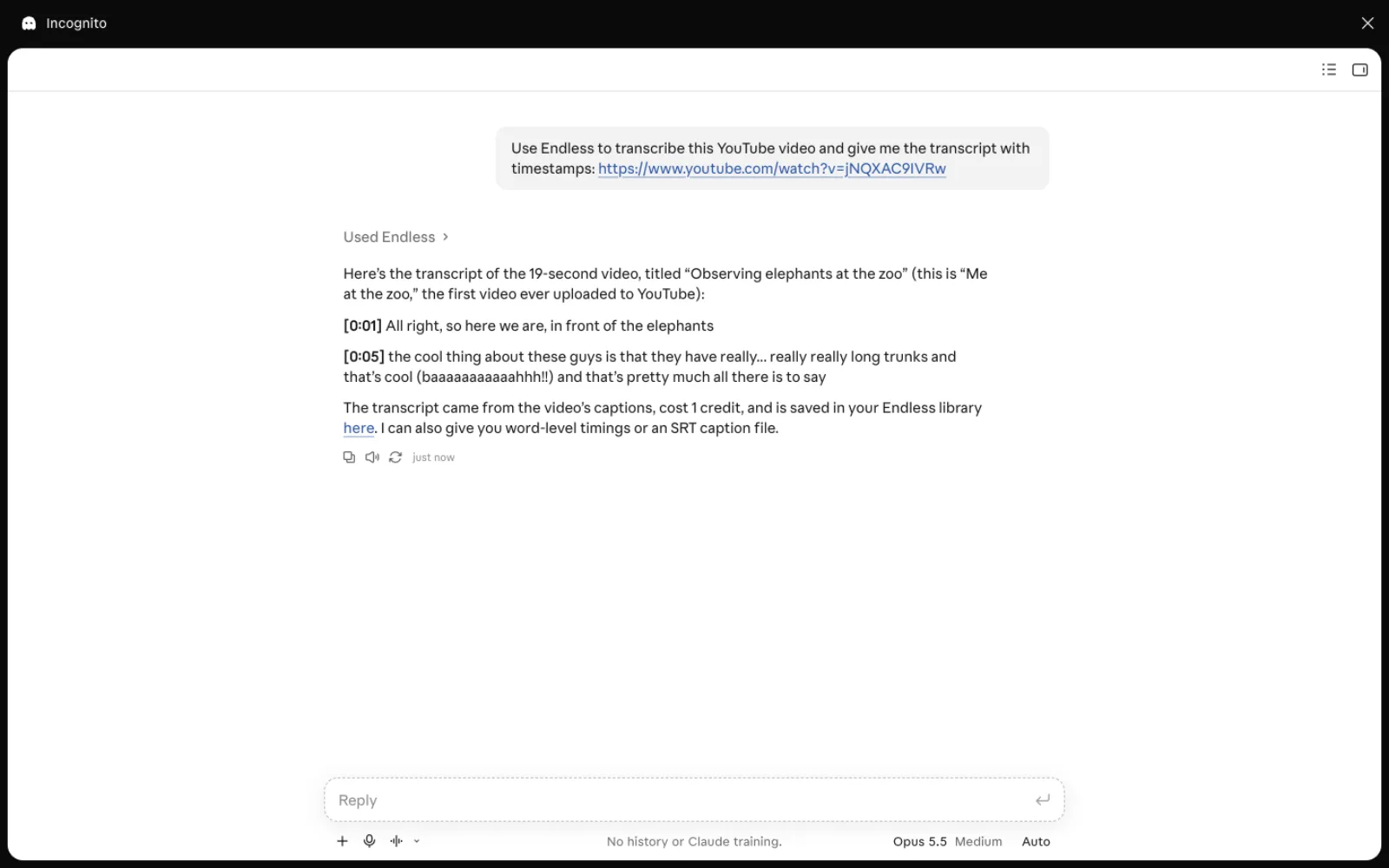
How to transcribe a YouTube video with Claude or ChatGPT
Neither Claude nor ChatGPT documents reading a YouTube link. What each one can transcribe on its own, and how to get a timestamped transcript of a YouTube, TikTok, Instagram or X link in the chat by connecting Endless.