Tarefas agendadas
Agende um prompt para executar diariamente, semanalmente, mensalmente ou uma única vez, e leia o resultado após cada execução.
Agendados é onde os prompts rodam sem você. A página se descreve com clareza — "Prompts que rodam automaticamente em uma agenda — cada execução começa um chat novo com o resultado." — e essa última parte é o modelo inteiro: um agendamento não é uma tarefa em segundo plano com uma saída misteriosa, é uma conversa que começa sozinha.
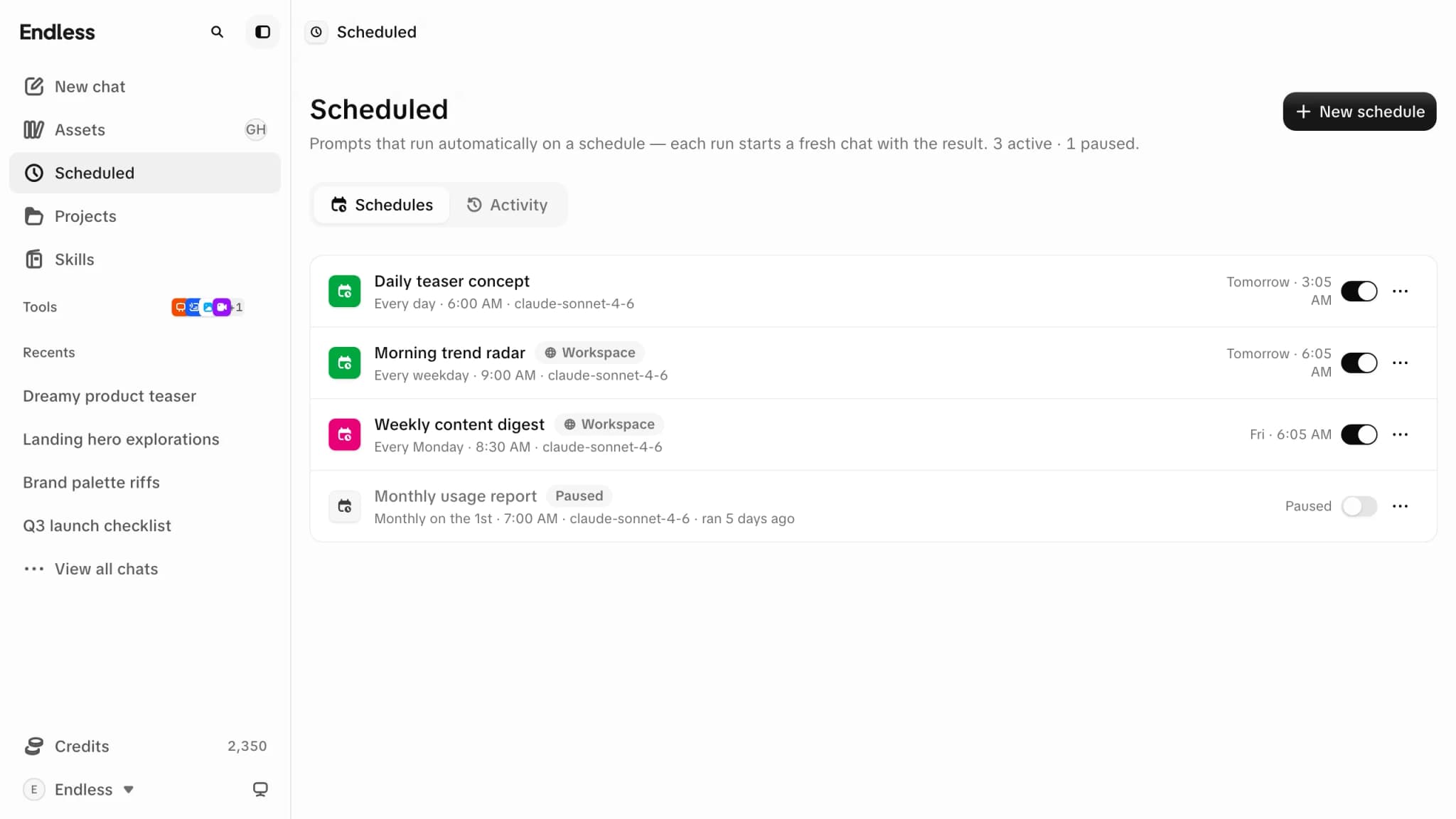
Tarefas agendadas é uma das áreas que um espaço de trabalho pode desligar. Onde está desligada, Agendados não aparece na barra lateral e a URL leva você de volta para o início. Quem gerencia a disponibilidade de recursos do espaço de trabalho pode ligá-la de novo.
Como criar um
Você precisa de permissão para criar conteúdo, que membros e admins têm por padrão e visualizadores não. Há três portas de entrada.
Novo agendamento
O botão no cabeçalho de Agendados. Abre um novo chat em que o Endless pergunta o que ele deve fazer e quando — veja abaixo.
Um modelo inicial
Uma página vazia oferece quatro: "Resumo diário" — "Um resumo pela manhã, todo dia útil", "Relatório semanal" — "Uma retrospectiva toda segunda-feira", "Resumo mensal" — "Um fechamento no dia 1º" e "Começar do zero". Os três primeiros abrem esse mesmo chat com as instruções e a cadência já sugeridas.
A partir de uma mensagem que você já enviou
Em um chat, o menu de uma das suas próprias mensagens traz "Criar agendamento" — "Rode este prompt em uma agenda recorrente". Ele abre o mesmo formulário com aquela mensagem como instruções.
Em uma conversa
Um agendamento é criado conversando. O Endless explica em poucas linhas como os agendamentos funcionam e depois pergunta o que ainda não sabe — o que ele deve fazer, com que frequência e a que horas, e quem recebe o resultado: só nesta página, por e-mail para você, ou para você e outras pessoas (membros do seu espaço de trabalho pelo nome, ou qualquer endereço externo que você digitar) — uma pergunta por vez, com opções para escolher ou uma resposta que você digita. Nem precisa do botão: em qualquer chat, "me mande isto toda segunda às 9" começa a mesma coisa.
Nada é salvo até você dizer. Quando tem o suficiente, o Endless mostra um cartão com o título "Criar este agendamento?" com tudo o que está prestes a salvar: o Nome, quando ele Executa (e em qual fuso horário), o Prompt completo que ele escreveu para as execuções, o Acesso geral e quem recebe o resultado por e-mail. Leia o prompt — cada execução parte só dele, sem memória desta conversa. Depois, "Criar agendamento", ou "Descartar" e diga o que mudar.
Depois de criado, o agendamento aparece como um cartão no chat que abre a página dele. Ali, quem pode editá-lo encontra "Pausar", "Editar" e "Testar" ao lado do nome, e o menu da página acrescenta "Compartilhar" e "Excluir". Volte ao chat mais tarde e o cartão continua lá para reabri-lo.
Você também pode pedir mudanças com palavras — "mude para 8:30", "pause", "mande para mim por e-mail também". Cada uma mostra um cartão "Salvar as alterações em …?" listando só o que mudaria, e espera por você do mesmo jeito.
O formulário
O formulário abre a partir de "Criar agendamento" em uma mensagem e de "Editar". Tem três etapas — Prompt, Entrega e Revisão — e você não consegue avançar deixando um campo obrigatório vazio; ele mostra o que está faltando em vez de recusar em silêncio.
Prompt
Um Nome (o exemplo mostrado é "ex.: Resumo semanal de analytics") e as Instruções — "O que deve rodar nesta agenda?"
A caixa de instruções é o compositor do chat, então tudo que você faz em uma mensagem de chat
dá para fazer aqui: @ para trazer um projeto, / para chamar uma skill pelo nome. O
que você não pode fazer é anexar um arquivo — um agendamento não tem anexos, só texto.
Mais dois controles ficam abaixo da caixa: o modelo em que este agendamento roda e Ferramentas.
Entrega
Repete — Diariamente, Dias úteis, Semanalmente, Mensalmente ou Uma vez — mais os seletores de dia que cada opção precisa, e Às, o horário do dia.
Depois, Acesso — "Quem pode abrir este agendamento e o que pode fazer." — e um interruptor "Envio por e-mail".
Revisão
Uma releitura de tudo e uma prévia ao vivo com o título "Próximas 3 execuções", junto do fuso horário em que esses horários estão. Este é o momento de conferir se "Mensalmente no dia 31" significa o que você acha que significa.
Instruções longas não são problema. O limite fica em torno de trinta e dois mil caracteres — algumas páginas de regras, fontes e formato de saída — e um contador só aparece quando você chega perto dele. Se passar, o formulário diz por quanto passou, para você cortar em vez de adivinhar. Se um salvamento for recusado por outro motivo, a mensagem nomeia o campo com problema.
Como funcionam a cadência e o fuso horário
O horário que você digita é lido no fuso horário do seu navegador no momento em que você cria o agendamento, e a etapa de revisão diz esse fuso em voz alta ("Horário de Buenos Aires", por exemplo) para não haver ambiguidade. Daí em diante o agendamento continua disparando naquele horário de relógio, naquele fuso — ele não acompanha você se você viajar.
Semanalmente pode significar vários dias
"Toda segunda e sexta" é um agendamento, não dois — escolha quantos dias da semana quiser. Você não consegue desmarcar o último.
Mensalmente se ajusta a meses curtos
O dia 31 dispara no dia 30, e no dia 28 ou 29 em fevereiro. Ele nunca pula um mês.
Uma vez precisa de uma data futura
Escolha uma data que já passou e o formulário avisa: "Essa data já passou — escolha uma data futura." Depois de disparar, ele para.
Os agendamentos vencidos são recolhidos em varreduras separadas por alguns minutos, então uma execução das 09:00 começa às 09:00 ou pouco depois — não no segundo exato. Não construa nada que dependa de precisão de minuto.
O que uma execução agendada pode fazer
Uma execução é um turno de chat de verdade, com as mesmas capacidades e os mesmos limites.
Skills
Toda skill ligada para você está ligada para os seus agendamentos. O controle Ferramentas da etapa Prompt deixa você desligar skills específicas só neste agendamento — o resumo mostra "Todas as ferramentas" até você fazer isso.
Conectores
Só os conectores que você realmente conectou são oferecidos. Um que está habilitado mas sem login não resultaria em nada na hora da execução, então não é listado.
Projetos
Mencione um projeto com @ nas instruções e toda execução carrega o
conhecimento e as skills dele, exatamente como um chat faria.
Geração
Uma execução pode gerar imagens e vídeos, escrever documentos e montar páginas web — tudo isso vira ativo.
Uma ferramenta que você habilitar no espaço de trabalho depois entra automaticamente nos seus agendamentos existentes. Você não precisa reabri-los.
O que ela não pode fazer
Não tem ninguém do outro lado para responder. Uma execução agendada não pode fazer uma pergunta de acompanhamento, não pode esperar por uma decisão e — esta é a parte importante — não pode pausar para confirmar um custo antes de gastar créditos. Criar o agendamento é a autorização. Se você não quer um agendamento gerando vídeo toda manhã, não peça isso a ele.
O gasto continua limitado ao que o espaço de trabalho pode de fato pagar: uma geração que o saldo restante não cobre é recusada, e a execução registra isso como falha em vez de ficar negativa.
Onde a saída aparece
A aba Atividade
A segunda aba de Agendados. Vazia, ela diz "Quando seus agendamentos rodarem, os resultados aparecem aqui — abra um para ler ou continuar a conversa." Cada entrada traz o status — Sucesso, Falhou ou Rodando — e abrir uma mostra a saída da execução, inclusive o que ela produziu como Documento, Página web ou PDF.
Você pode filtrar o feed por um agendamento. O menu do próprio agendamento também tem "Ver execuções", que abre o histórico de execuções desse agendamento.
O chat da execução
Cada execução começa a própria conversa, com o nome do agendamento e o horário em que rodou no título. "Ver chat" abre a conversa, e você pode continuar conversando a partir dali.
Essas conversas ficam de propósito fora do Histórico de chats — um agendamento diário soterraria todo o resto. A Atividade é o caminho de entrada.
Ativos
Tudo que uma execução gera vira um ativo como qualquer outro, pesquisável e filtrável junto com o restante.
Sua caixa de entrada, se você pedir
"Envio por e-mail" — "Envie o resultado de cada execução por e-mail para membros do espaço de trabalho ou para qualquer endereço externo. Os resultados continuam aparecendo no app." Os destinatários podem ser pessoas do espaço de trabalho ou qualquer endereço que você digitar; o assunto é o nome do agendamento, e o card da execução depois registra para quem ela foi.
Quem pode ver um agendamento
O acesso é definido na seção Acesso da etapa Entrega, e um agendamento novo começa Privado. Depois, o proprietário muda isso em "Compartilhar" no menu do agendamento, ou na mesma seção de "Editar".
Privado
"Só você, e os chats das execuções" — mais quem você adicionar pelo nome.
Todos no espaço de trabalho
Qualquer membro pode abri-lo, com Pode ver ou Pode editar.
Pessoas específicas
Adicione pessoas uma a uma, cada uma com Pode ver ou Pode editar. A configuração própria de uma pessoa vale mais que a do espaço de trabalho, mesmo quando é menor.
O acesso vale também para as conversas das execuções, não só para o agendamento — quem pode abrir o agendamento pode ler o que ele produziu. O chat de uma execução não é compartilhado sozinho: para mostrar os resultados a alguém, compartilhe o agendamento.
Diferente dos ativos, os agendamentos têm uma exceção de supervisão: "Privado" quer dizer privado em relação aos seus colegas, não em relação à supervisão do espaço de trabalho. Três permissões separadas, que os admins têm por padrão, vão além disso: "Ler conteúdo criado por outras pessoas" abre qualquer agendamento e as execuções dele; "Editar conteúdo criado por outras pessoas" altera qualquer agendamento que quem a tem consiga abrir; "Excluir conteúdo criado por outras pessoas" os exclui. Veja funções e permissões.
Pausar, editar, excluir
Cada linha tem um menu — "Ver execuções", "Pausar", "Editar", "Testar", "Compartilhar", "Excluir" — e a página de cada agendamento tem as mesmas ações; um criado em um chat também pode ser pausado ou editado pedindo. Pausar interrompe as execuções futuras e mantém todo o resto; a linha fica marcada como "Pausado".
Quem vê cada ação depende do acesso ao agendamento. Quem tem Pode editar — e também a permissão do espaço de trabalho para criar e editar conteúdo — pode pausar, editar e testar. Só o proprietário adiciona pessoas ou muda o acesso geral; os demais só podem sair de um agendamento compartilhado com eles. Excluir cabe ao proprietário, ou a quem tem "Excluir conteúdo criado por outras pessoas" e consegue abri-lo.
Excluir é a ação permanente: "Isso exclui permanentemente o agendamento e interrompe as execuções futuras. Os chats das execuções anteriores são mantidos. Não é possível desfazer."
Quando as execuções falham
Uma execução que falhou é marcada no feed, e a linha do agendamento mostra "Última execução falhou".
Depois de três falhas seguidas, um agendamento se pausa sozinho e avisa: "Pausado automaticamente após falhas repetidas. Corrija o prompt ou as ferramentas e retome." Um aviso no topo da lista conta quantos estão nesse estado. Corrija o que quebrou — um conector desconectado costuma ser o culpado — e ligue o agendamento de novo.
Uma execução que para de responder por completo é marcada como falha depois de um tempo, em vez de ficar girando — é por isso que uma falha ocasional pode aparecer sem causa evidente.
O que rodou, em todo o espaço de trabalho
As execuções individuais ficam em Atividade, nesta página. O registro de tudo que aconteceu no espaço de trabalho inteiro — inclusive as movimentações de créditos — está em Configurações → Governança → Atividade, que exige a permissão de leitura de governança para abrir.
Quanto custa uma execução
As execuções gastam créditos como qualquer outro trabalho. O chat é barato; a geração não é.
Limite o que um agendamento alcança
Conectores, e a diferença entre conectar e habilitar.
Ensine um fluxo de trabalho antes
Um agendamento que chama uma skill fica curto e consistente.
Radar social
Pergunte ao Radar o que está acontecendo agora nas redes sociais e na web, receba um resumo com fontes citadas e acompanhe as tendências sem sair do chat.
Como trabalhar com skills
Instale uma skill, escreva a sua própria e controle quais ficam ligadas para você e para o espaço de trabalho.