Transcripts
Turn any recording, podcast or video link into searchable text with speakers and timestamps, then export it or reuse it as clips, posts and subtitles.
A transcript is the searchable, editable text version of an audio or video file. Add a recording or paste a link, and Endless returns the full text — at high quality, broken into speakers and timestamped down to the word — so you can read it, search it, and turn it into something else.
Most people don't want the text for its own sake. They want what comes next: the clip, the thread, the subtitle file, the quote they can't find by scrubbing a two-hour stream. A transcript is the fastest path from "we recorded it" to "we published it."
The clip can be literal. Where the built-in clip skill is switched on — it's a
skill, so a workspace or an individual can have it off — chat
can cut a moment out of the recording, reframe it to vertical or square, burn the captions in
from these word timings, and file the finished video to your assets. See turn one recording into
a week of content.
The page describes itself as "Turn a recording, podcast, or YouTube link into searchable text, with speakers, timestamps, and clip-ready exports."
What you get
Searchable text
The full recording as clean, readable text. Find any phrase in seconds instead of scrubbing the timeline.
Speakers
At high quality, each turn is attributed to a speaker. Rename them once and it updates everywhere, exports included.
Word-level timestamps
At high quality, every word is anchored to its moment in the audio. Select a line to jump the player straight to it.
Chapters and a title
A title is written for the transcript as it's created, and chapters marking the topic shifts arrive a moment later.
Clip-ready exports
Plain text, speaker text, JSON, and subtitle files (SRT / VTT) — ready for your editor, player, or workflow.
What you can do with it
Transcripts are the raw material for almost any content workflow. A few of the most common:
Media & broadcast
Transcribe a full radio show, TV segment, or live stream, then pull timestamped moments into short clips for Instagram, TikTok, and YouTube.
Podcasts
Turn a long episode into vertical clips and quote threads — and ship show notes without re-listening.
Clipping & editing
Cut the moment here — vertical, captions burnt in — where the clip skill
is on. Or export SRT and finish it in Premiere or any subtitle-aware tool.
Agencies & social
Repurpose one interview or webinar into posts, carousels, and threads across multiple client accounts.
Education
Convert recorded classes and lectures into summaries, carousels, and study notes.
Newsrooms
Search long interviews for the exact quote, attribute it to the right speaker, and clip it fast.
Pair transcripts with Chat to go from text to output in one move —
ask for a thread, a set of clip ideas with timestamps, or a script in your
brand's tone. Endless can search your transcripts, read one in full, and even
make a new one from a link mid-conversation; mentioning a
specific transcript with @ hands it the right one instead of making it go
looking.
Add a recording
Add a file or paste a link
Drag an audio or video file onto the uploader, or select "choose a file" to pick one — you can add several at once. To use a link instead, paste it into the link box and select "Transcribe". Pasting a link anywhere on the page (as long as you aren't typing in a field) drops it into that box for you.
Pick a quality, where you get the choice
For a YouTube or TikTok link, a quality toggle appears: "Fast" uses the video's existing captions and is ready in seconds, "High quality" transcribes the audio instead, adding speaker labels and exact word timings. Fast is preselected, and the rate each option is billed at is shown beside it — transcription is priced by the length of the recording, and fast is several times cheaper.
Everything else has no choice to make. Instagram and X links only have the captions route, so they always run fast. Uploads and direct media links always run at high quality, whatever the toggle last said.
Watch the queue
Recordings are transcribed one at a time, and you can keep adding more while it works. Each item shows where it is — "Queued", then "Compressing" (large files are shrunk in your browser before they're uploaded), "Uploading", "Transcribing", "Saving" — and finishes with "Done" and an "Open" action. A failure doesn't stop the rest: that item gets a retry, and the others carry on.
Read, search, and export
Open the transcript to read it by speaker or as plain text, jump around by selecting any line, search across the whole thing, and export in the format you need.
Pasting the same link twice doesn't transcribe it twice. Endless recognizes a source it has already done — including the same video in a different URL shape — and opens the transcript you already have, at no further cost.
What you can transcribe
| Type | Accepted |
|---|---|
| Audio | Any audio file; the uploader names MP3, WAV, and M4A |
| Video | Any video file; the uploader names MP4, MOV, and WEBM |
| Links | YouTube, Instagram, TikTok, X, and direct links to a media file |
Files must be under 2 GB each — the app says so when one isn't: "Files must be under 2 GB. Try a shorter clip, or compress it first." For something longer, split it into segments or compress it before uploading.
Reading a transcript
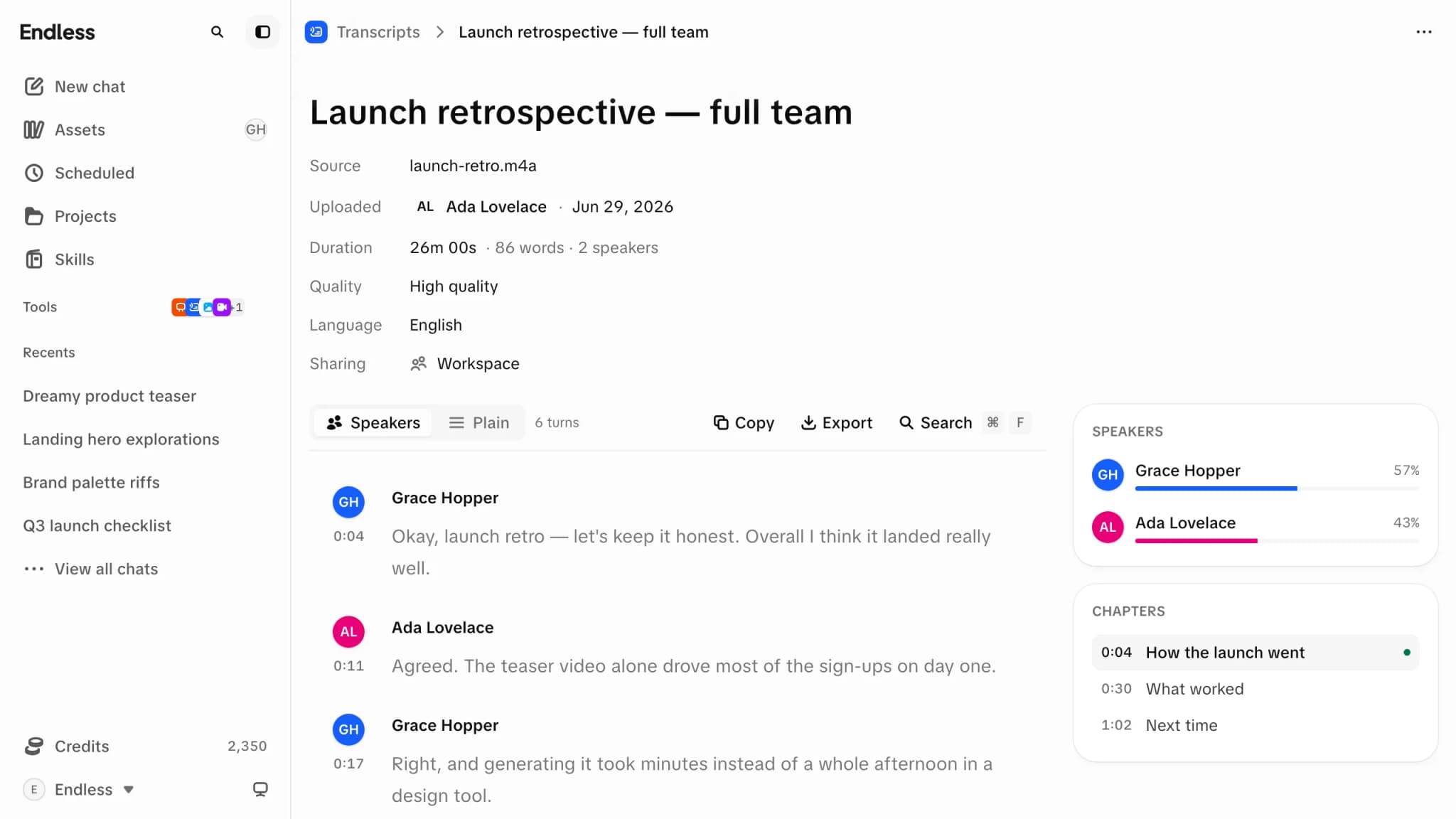
The transcript page opens with the essentials in a short list — Source, Added, Duration, Quality, Language, plus Imported from when it came from an import — above the text itself, and the pill in the header shows "Private" or "Shared". If the source was a file you uploaded, its name is a download link.
Search inside it
"Search transcript…" finds every match and steps through them with Enter and Shift+Enter. Selecting any line moves the player to that moment.
Speakers panel
Each speaker is listed with their share of the talking. Rename one and the new name replaces it everywhere — the text, the panel, and every export.
Chapters panel
Chapters are written for you shortly after transcription finishes — until they land it says "Chapters appear a moment after this recording finishes transcribing." Select one to jump there.
Language
When a captioned source offers more than one caption language, the Language row becomes a picker and Endless re-fetches the transcript in the language you choose.
Two views sit above the text: "Speakers", which keeps each turn attributed, and "Plain", which reads as paragraphs. There's a copy button for the whole thing, and a playbar with playback speed and 10-second skips.
Export formats
Every transcript exports in five formats from the "Export" menu:
| Format | File | Best for |
|---|---|---|
| Plain text | .txt | Copy-paste, drafts, feeding into another tool |
| Speaker text | .txt | Interviews and meetings — keeps who said what |
| JSON | .json | Words plus timing, for custom tooling |
| SubRip | .srt | Subtitles for most editors and players |
| WebVTT | .vtt | Captions for web video |
When it doesn't work
A transcription that fails leaves the item in your list rather than disappearing — it reads "Couldn't transcribe. Try again.", and opening it explains: "Couldn't transcribe this source. Delete it, or paste the link again to retry." Nothing is charged for a transcription that didn't produce a transcript; the charge happens only once the text exists. See Credits and spending.
Who can make one
Transcripts can be switched off. It's one of the features an admin can turn off for the whole workspace, a team, or one person — the description in the settings reads "Turn recordings, podcasts, and links into searchable text." When it's off, the page isn't reachable and Endless can't make a transcript in chat either.
Creating a transcript is a content action, so it needs a role that can create content — a viewer, who reads and nothing else, can't start one. See Roles and permissions.