Faturamento
Gerencie seu plano do Endless, a forma de pagamento, as faturas e os pacotes de créditos, e saiba o que fazer se não conseguir abrir a página.
Configurações → Espaço de trabalho → Faturamento — "Plano, uso e formas de pagamento." — é o único lugar onde o dinheiro do espaço de trabalho é administrado: em que plano ele está, o que já usou, quem recebe as faturas e qual cartão as paga.
Talvez você não consiga abrir
Faturamento exige a permissão "Ver e gerenciar faturamento", que Administrador e Gerente de faturamento têm por padrão. Sem ela, o item nem aparece no menu de configurações, e digitar o endereço leva você para a sua própria página de Perfil. Veja Funções e permissões.
Essa restrição é proposital, mas seria cruel sozinha, porque todo mundo precisa saber quantos créditos ainda tem. Por isso o número está em algum lugar sem restrição:
O popover de Créditos
No rodapé da barra lateral, aberto a todos. Ele mostra "Disponível" — o seu saldo, não só o do espaço de trabalho —, o limite que se aplica a você, se houver, uma contagem regressiva até a próxima recarga e os últimos quinze dias de gasto do espaço de trabalho em um gráfico ("Espaço de trabalho · 14 dias"). Ele também avisa antes de acabar, com "Créditos acabando" e depois "Sem créditos".
O link no rodapé do próprio popover leva a esta página, então segui-lo sem a permissão de faturamento devolve você do mesmo jeito.
Antes de haver um plano
Um espaço de trabalho novo ainda não tem conta de faturamento, então a página mostra o nível gratuito e um formulário: "Configurar faturamento" — "Adicione seus dados de faturamento para assinar um plano." Nada mais acontece até que ele seja preenchido, porque o checkout precisa de um cliente ao qual se vincular.
Nome da empresa
"Isto vai aparecer nas suas faturas."
E-mail principal de faturamento
"Faturas e recibos de pagamento serão enviados para cá." Não precisa ser o e-mail com o qual você entra.
E-mails adicionais de faturamento
Opcional, adicionados um por vez com "Adicionar e-mail" — "Envie cópias das faturas para outras pessoas do time."
Você pode editar tudo isso depois, na seção Dados de faturamento.
Lendo a página
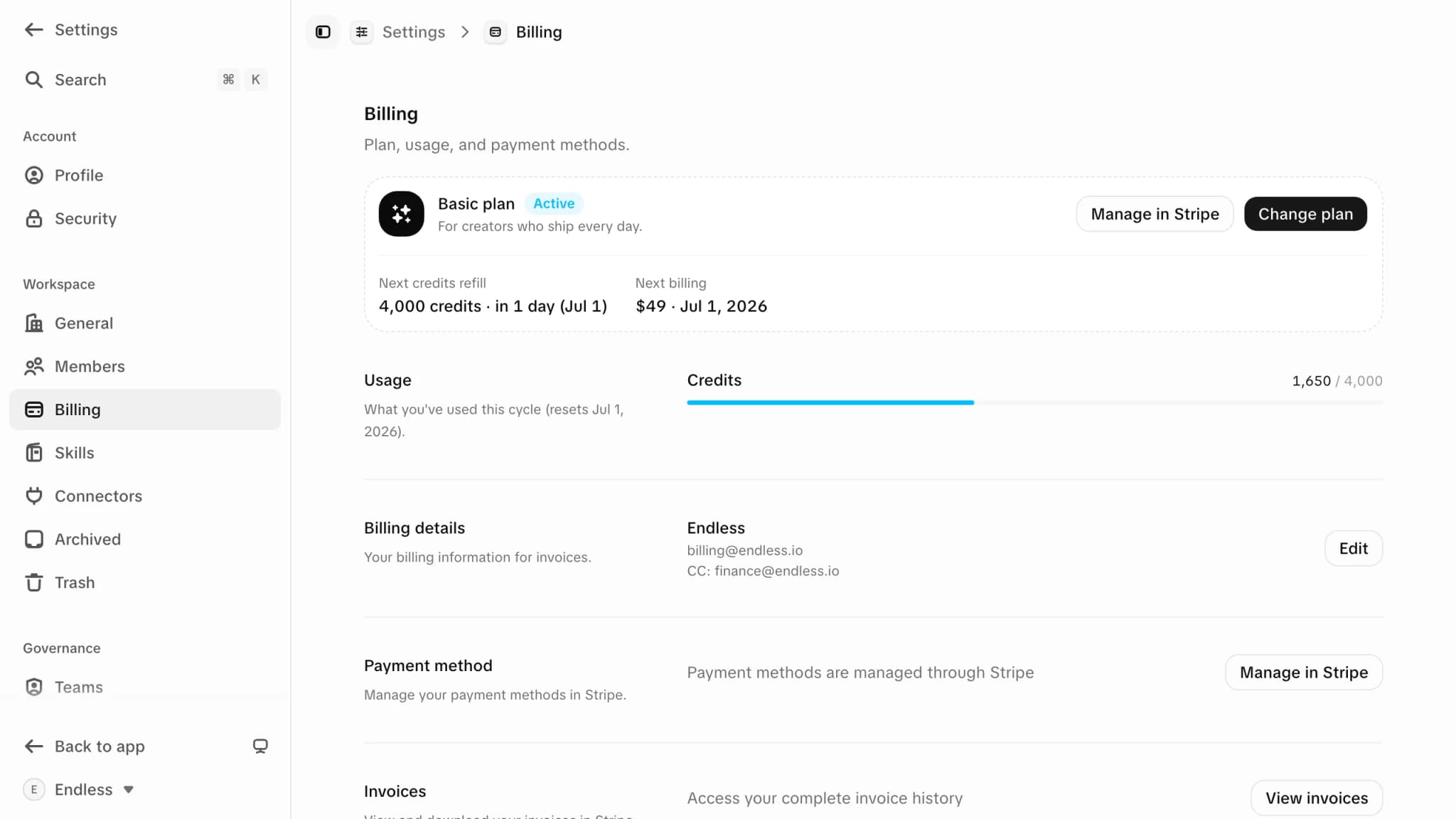
O banner do plano
No topo. Um espaço de trabalho sem assinatura mostra "Plano Free" e "Sem assinatura", com uma cota semanal de créditos gratuitos e um botão "Fazer upgrade". Um espaço de trabalho assinante mostra o nome e o status do plano, com "Mudar de plano" e "Gerenciar no Stripe".
Próxima recarga de créditos e Próxima cobrança
São duas datas diferentes, e vale não confundir. "Próxima recarga de créditos" é quando a cota é reabastecida; "Próxima cobrança" é quando o dinheiro se move — no nível gratuito, aparece "Nada a pagar".
Uso
Uma barra dos créditos usados em relação ao total do ciclo, com a data em que o ciclo reinicia. Espaços de trabalho gratuitos também têm uma — a recarga semanal é um pote como qualquer outro.
Atividade
"Eventos de faturamento recentes dos últimos 30 dias." Assinaturas, pagamentos e concessões de créditos, dos mais novos aos mais antigos.
Espaços de trabalho assinantes ganham três seções a mais: Forma de pagamento ("Adicionar forma de pagamento" quando não há nenhuma cadastrada, caso contrário o cartão e "Gerenciar no Stripe"), Faturas ("Acesse seu histórico completo de faturas" em "Ver faturas") e Pacotes de créditos.
Formas de pagamento e faturas não são armazenadas no Endless — esses botões levam você ao portal do provedor de pagamentos e depois trazem você de volta. Se um pagamento falhar, a página avisa no topo dos dados de faturamento e aponta para o mesmo lugar.
Mudando de plano
Abra o seletor de planos
"Fazer upgrade" em um espaço de trabalho gratuito, "Mudar de plano" em um assinante. O diálogo se chama "Escolha um plano" na primeira vez e "Mudar de plano" depois — "Faça upgrade ou downgrade do seu plano a qualquer momento."
Escolha mensal ou anual
Um seletor "Mensal" / "Anual" fica acima dos planos, com a economia anual indicada nele. Seu plano atual recebe o selo "Atual"; uma mudança que você já agendou recebe o selo "Agendada".
Confirme
O Endless mostra a consequência antes de cobrar qualquer coisa.
- O upgrade vale na hora, cobra o novo plano imediatamente e reinicia o ciclo de faturamento hoje — você recebe os créditos do novo plano, e os créditos não usados do plano anterior não são transferidos.
- O downgrade espera: o plano muda no fim do período de faturamento atual, e você mantém os recursos e créditos atuais até lá. O diálogo lista os recursos que você vai perder.
Duas coisas bloqueiam a mudança. Uma assinatura anual não pode ser trocada no meio do ano — o diálogo avisa e leva você ao portal do provedor para cancelar ou atualizar o pagamento. E um downgrade para um plano com menos assentos é recusado enquanto o espaço de trabalho tiver mais membros do que esse plano permite; remova pessoas primeiro. Essa verificação conta convites pendentes como membros.
Pacotes de créditos
Assim que um espaço de trabalho assina um plano, aparece a seção "Pacotes de créditos": "Recargas avulsas. Créditos comprados nunca expiram e passam de um ciclo de faturamento para outro." Pressione "Comprar" em um pacote e o checkout abre; os créditos chegam ao espaço de trabalho poucos segundos depois do pagamento.
Essa é a resposta para ficar sem créditos no meio do ciclo sem mudar de plano — e, diferente da cota recorrente do plano, o que você compra fica até você gastar.
Preços e limites
Esta página não lista preços, cotas de créditos, número de assentos ou limites de projetos, e isso é proposital. Eles mudam, variam conforme o intervalo de faturamento, e citá-los aqui é um bom jeito de errar. Os dois lugares sempre atualizados são o seletor de planos dentro de Configurações → Faturamento, que mostra o preço e a cota vigentes de cada plano, e a página de preços no site do Endless. Para planos além dos de autoatendimento, o diálogo oferece "Falar com vendas" — "Fale conosco para um preço personalizado."
O que os créditos compram
O que custa créditos, quando você é cobrado e por que um modelo custa cem vezes mais que outro.
Assentos e membros
O limite de assentos na prática: quem conta para ele e o que acontece quando você o atinge.
Quem pode ver esta página
Gerente de faturamento existe justamente para que um contato do financeiro pague as contas sem ter acesso operacional.
Excluir o espaço de trabalho
Encerrar um espaço de trabalho é uma configuração do espaço de trabalho, não de faturamento.