Trabajar con skills
Instala una skill o escribe la tuya, léela y edítala, y controla desde una sola página qué skills están activas para ti y para todo el espacio de trabajo.
Esta es la mitad práctica: cómo llevar una skill a tu espacio de trabajo, cómo activarla o desactivarla y qué pasa cuando tu elección y la del espacio de trabajo no coinciden.
Cómo encontrar la página
Skills en la barra lateral y Configuración → Skills son la misma página montada dos veces. La misma lista, el mismo contador, los mismos botones — usa la que te quede a mano. Cualquier miembro puede abrirla; la página en sí no tiene permisos.
Cada skill tiene su propio interruptor en su fila. Tu espacio de trabajo empieza con un
conjunto ya instalado — entre ellas clip, que recorta un momento de un video, lo reencuadra en
vertical o cuadrado y le graba subtítulos, y que los interruptores de abajo pueden desactivar
como cualquier otra.
Cómo agregar una
"Nueva skill" ofrece tres rutas, y todas terminan en el mismo sitio.
Subir
"Suelta una skill o explora." Un paquete .zip o .skill, o un solo
SKILL.md. Los scripts y archivos de referencia incluidos vienen con él; lo
binario o demasiado grande se omite, y el diálogo te dice cuántos.
Pegar
El texto del SKILL.md directo en el cuadro. "El nombre y la descripción
se leen automáticamente del frontmatter."
Desde una URL
"Pega una URL de skills.sh o de GitHub y luego haz clic en Obtener. Los archivos del paquete también se incluyen." Obtén primero, revisa qué se cargó y luego agrega.
Con cualquiera de las tres opciones, puedes revisar el Nombre y la Descripción antes de guardar. Al terminar, aparece una confirmación.
Dedica tu esfuerzo a la descripción. La descripción es lo que Endless lee para decidir si una skill es relevante — el propio campo lo pide: "Indica a Endless cuándo debe usarse esta skill…". Escríbela como cuándo recurrir a esto, no como qué es esto. Una skill perfecta con una descripción vaga sencillamente nunca se activa.
Agregar una skill necesita permiso para crear contenido — los miembros y administradores lo tienen por defecto, los lectores no. Una skill que agregas empieza siendo privada: solo tú puedes verla y usarla hasta que la compartas — con personas concretas o con todos en el espacio de trabajo — y los interruptores de abajo se aplican encima. El diálogo para agregarla te deja elegirlo antes de guardar, y el menú de una fila tiene "Compartir" para después.
Cómo leer y editar una
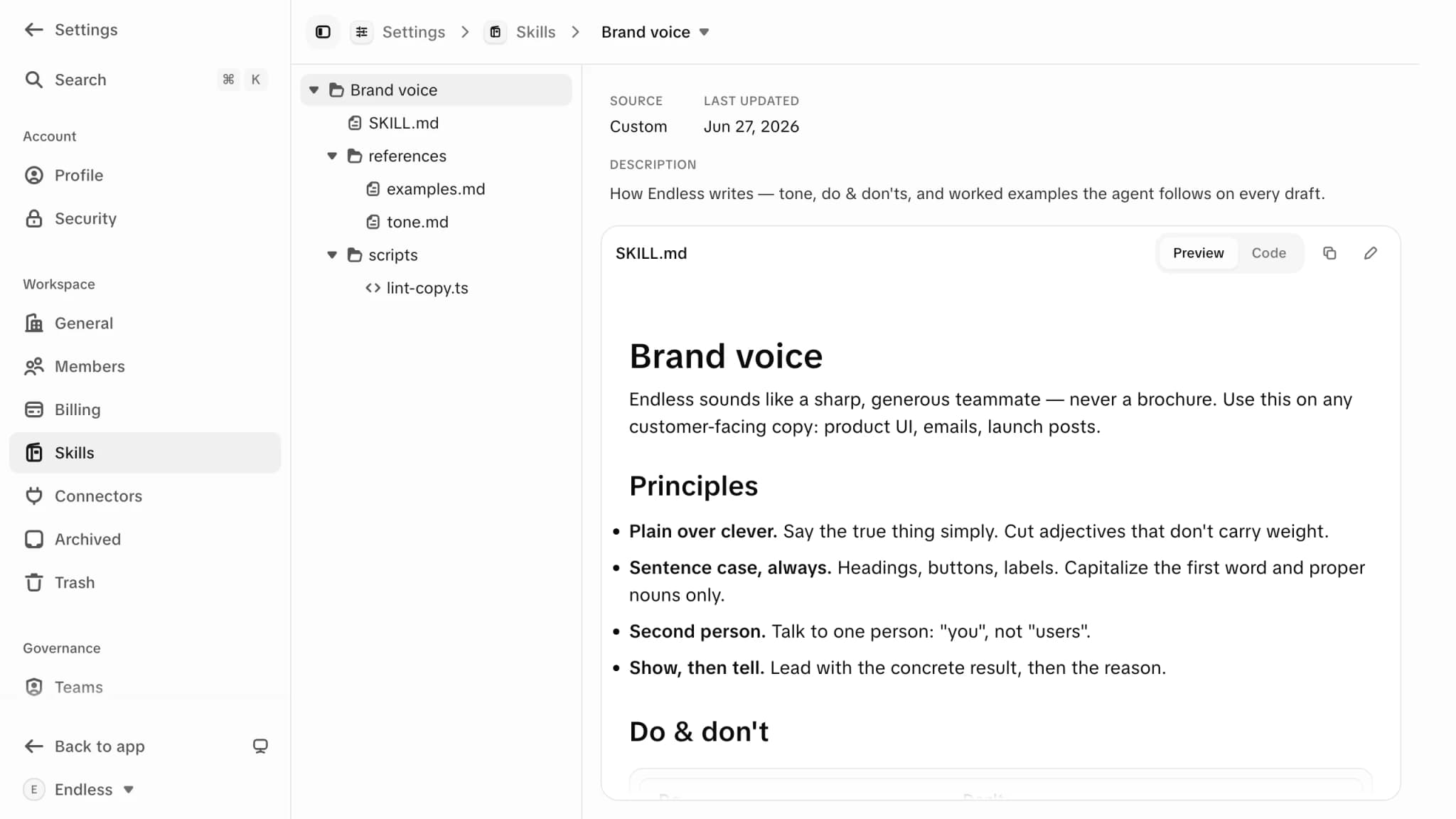
El menú de una fila tiene "Ver skill", "Compartir" y "Quitar". La vista de detalle muestra su Fuente, cuándo fue su Última actualización, su descripción y sus archivos como un árbol por el que puedes navegar. La edición ocurre ahí mismo — abre un archivo, cámbialo, guarda.
Puedes editar, compartir y quitar las skills que agregaste. Las personas con quienes compartes una con Puede editar también pueden cambiarla, pero solo tú decides con quién se comparte. Quitarla te corresponde a ti, o a quien tenga "Borrar contenido creado por otros" y pueda abrirla; del mismo modo, editar contenido creado por otros alcanza solo a las skills que quien tiene el permiso ya puede abrir — mira roles y permisos. Las skills que vienen instaladas no se pueden editar, quitar ni compartir, y una skill que pertenece a un proyecto la puede abrir quien pueda abrir ese proyecto.
Cómo activar y desactivar skills
Se apilan dos interruptores. El del espacio de trabajo decide qué es posible; el tuyo decide qué está activo.
Personales — tu propia elección
La pestaña por defecto. Un interruptor por skill, que no afecta a nadie más que a ti.
Espacio de trabajo — el límite
Una segunda pestaña, visible solo para quienes pueden gestionar las herramientas del espacio de trabajo — un permiso de gobernanza que los administradores tienen por defecto y los miembros normales no. Su indicación dice lo que hace: "Desactiva una skill aquí para quitarla para todos en el espacio de trabajo. Los miembros eligen por su cuenta entre las que queden activas."
El límite manda. Cuando una skill está desactivada para el espacio de trabajo, tu propio interruptor se reemplaza por una insignia bloqueada "Desactivado para el espacio de trabajo" — no hay forma de volver a activarla para ti. Lo contrario no es cierto: activar una skill para el espacio de trabajo la hace disponible, no la impone a nadie.
Hay un tercer nivel, más estrecho. Un administrador puede fijar las skills de una persona desde el perfil de esa persona, en Funciones — y ahí aplica la misma regla, en palabras del propio producto: "Una skill tiene que estar activada para el espacio de trabajo antes de poder activarla aquí."
Quién controla el límite
El permiso que desbloquea la pestaña Espacio de trabajo, y quién lo tiene.
Ajustes por persona
Se definen desde el perfil de un miembro en Miembros, en Funciones.
Dónde aparece una skill
En el chat, por su cuenta
No invocas una skill. Cuando una tarea coincide con una que tienes activa,
se carga. También puedes nombrar una directamente con / en el compositor.
En las ejecuciones programadas
Las skills también trabajan mientras duermes. El control Herramientas de una programación las lista, así que puedes desactivar skills concretas solo para esa programación sin tocar tus propios ajustes.
No es el conocimiento de un proyecto
El conocimiento de un proyecto es una skill por debajo, pero está oculto de esta lista a propósito y se carga solo cuando su proyecto está adjunto al chat.
Una skill que desactivas queda desactivada en todas partes — tanto en el chat como en las ejecuciones programadas. Si una programación que antes funcionaba deja de comportarse bien, vale la pena revisar si hay una skill desactivada en cualquiera de los dos niveles antes de revisar el prompt.