Conectores
Dê ao Endless acesso às ferramentas que você já usa, com o seu próprio login e sob um teto definido pelo espaço de trabalho.
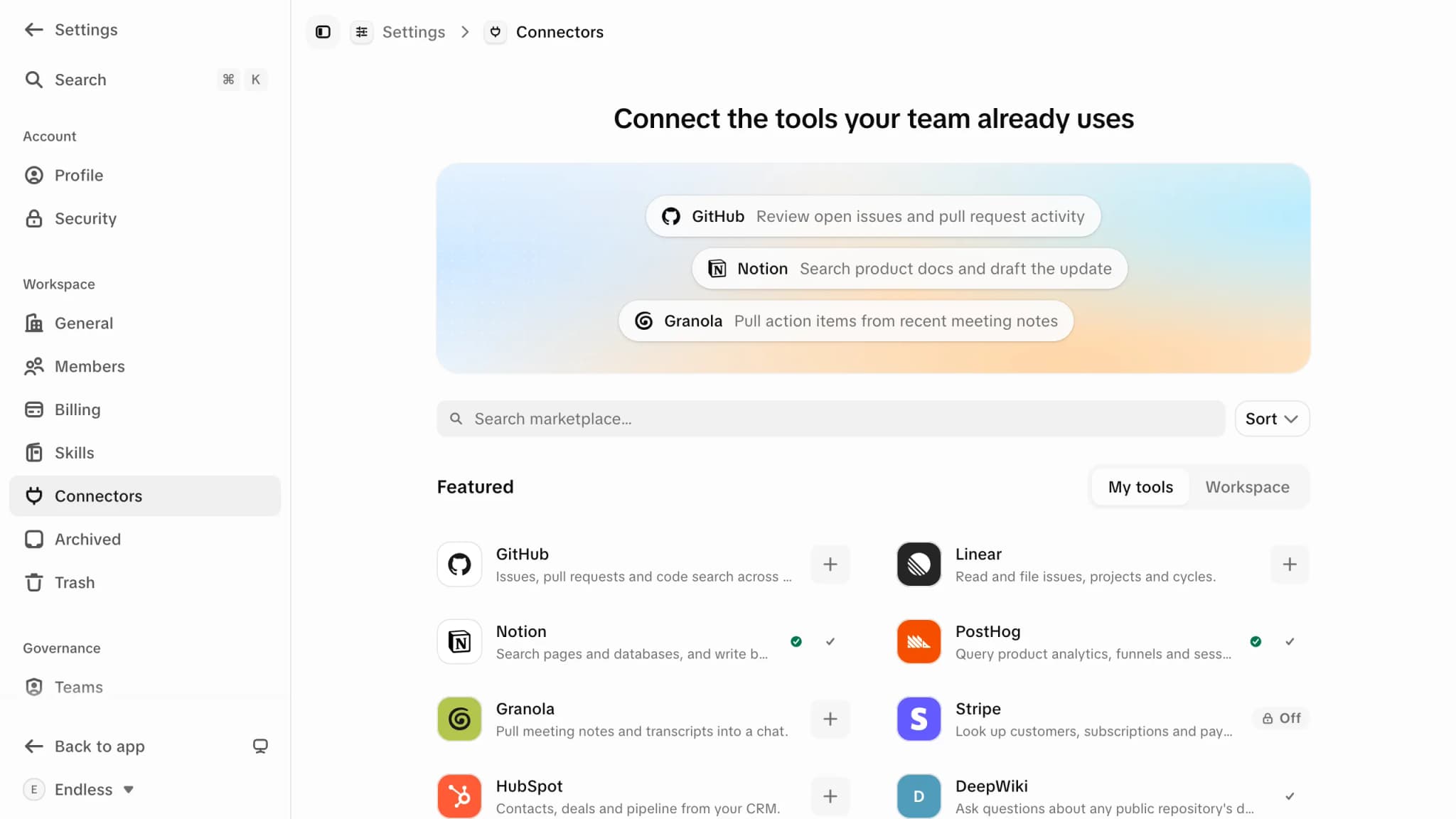
Um conector dá ao Endless um caminho até uma ferramenta que você já usa — seu rastreador de issues, suas anotações, seu CRM — para que um chat possa ler dela e agir nela. A página é Configurações → Conectores, com o título "Conecte as ferramentas que seu time já usa", e todo membro do espaço de trabalho pode abri-la.
Uma skill ensina ao Endless como você trabalha. Um conector dá a ele acesso a outro lugar. Os dois são ligados e desligados do mesmo jeito, e essa é a única coisa que têm em comum — veja skills e conhecimento para entender a diferença.
Como conectar um
Cada conector é um card com o nome, uma linha sobre o que ele faz e um botão + com o rótulo "Conectar" seguido do nome da ferramenta. O que acontece quando você o pressiona depende de como aquela ferramenta autoriza o acesso.
Entrar com o provedor
Algumas ferramentas autorizam pela conta que você conecta ao próprio Endless. Você aprova as permissões na janela do provedor e volta. Pode ser que peçam para você confirmar sua identidade antes — isso é esperado.
Autorizar em uma janela do navegador
A maioria das ferramentas faz a própria autorização: você é enviado até a ferramenta, aprova o acesso lá e volta para a página de conectores com "Conector adicionado".
Sem login nenhum
Algumas poucas — em geral servidores públicos de documentação — não precisam de conta. O botão do card simplesmente liga o conector para você.
Depois de conectado, o card mostra um visto. Passe o mouse ou dê foco nele e o visto vira um × — é o botão de desconectar. Ao lado fica um pequeno indicador de saúde que conta o que a ferramenta está de fato fazendo: "Verificando conexão", depois quantas ferramentas ela oferece, ou "Sem resposta" se o servidor estiver fora do ar.
Alguns conectores dependem de um aplicativo registrado junto ao provedor do nosso lado antes que qualquer pessoa consiga concluir o fluxo. Onde isso ainda não existe, a conexão falha com um aviso "Não foi possível conectar" e tentar de novo não ajuda — a correção não está nas suas mãos. Se um conector específico recusa a conexão repetidamente enquanto os outros funcionam, essa é a causa provável.
Como encontrar um
O catálogo é uma grade com busca: um campo "Buscar no marketplace…" e um menu Ordenar que oferece Em destaque ou Nome. Hoje ele cobre ferramentas de desenvolvimento e produto, ferramentas de anotações e reuniões, CRM e pagamentos, analytics e servidores de documentação.
A lista cresce sem que nada precise ser instalado ou atualizado do seu lado — o que está na página é o que está disponível. Busque nela em vez de confiar em uma lista anotada em outro lugar.
Dois interruptores, não um
Os conectores seguem o mesmo modelo de dois níveis das skills, com um passo extra próprio.
O teto do espaço de trabalho
Uma aba Espaço de trabalho, visível só para quem pode gerenciar as ferramentas do espaço de trabalho — uma permissão de governança que os admins têm por padrão e os membros comuns não. A dica dela: "Desligue um conector aqui para removê-lo para todo mundo no espaço de trabalho. Os membros escolhem por conta própria entre os que ficarem ligados."
A sua escolha
A aba Minhas ferramentas, que é o que todo mundo vê sozinho. Onde o espaço de trabalho desligou algo, seu card mostra um selo bloqueado "Desligado" no lugar do botão.
O seu login
O passo que as skills não têm. Habilitado não é o mesmo que conectado. Um conector deixado ligado para o espaço de trabalho, mas em que você nunca fez login, não faz nada — as credenciais são suas, pessoais, e ninguém pode concedê-las no seu lugar.
Desligar um conector para o espaço de trabalho o remove para todo mundo na hora, inclusive para quem já tinha conectado. Ligá-lo não conecta ninguém — cada pessoa ainda faz o próprio login.
Quem controla o teto
A permissão por trás da aba Espaço de trabalho e quais funções a têm.
Ajustes por pessoa
Um admin também pode definir os conectores de uma pessoa pelo perfil dela em Membros, na seção Acesso — ainda limitado pelo teto do espaço de trabalho.
Como adicionar um servidor seu
Abaixo do catálogo fica "Servidores MCP personalizados" — "Adicione seu próprio servidor MCP (Slack, Granola, …) para usar as ferramentas dele dentro do chat." Se uma ferramenta que você usa publica um endpoint MCP, você pode apontar o Endless para ele sem esperar que apareça no catálogo.
Descreva o servidor
Um Rótulo do servidor (o exemplo mostrado é "Rótulo (ex.: Granola)"), a URL do
servidor e um Transporte — http ou sse, o que o servidor documentar.
Escolha como ele autentica
Bearer token se o servidor aceita um token que você já tem — cole-o e ele é criptografado antes de ser armazenado. OAuth se o servidor faz o próprio login: "Você será redirecionado ao servidor para entrar depois de adicioná-lo."
Adicione
"Adicionar servidor", ou "Adicionar e conectar" quando o handshake OAuth vem logo em seguida. O servidor passa a aparecer como uma linha em que você pode Conectar, Editar ou Remover, com as mesmas abas Minhas ferramentas e Espaço de trabalho — a dica do espaço de trabalho aqui diz "Desligue um servidor aqui para removê-lo para todo mundo no espaço de trabalho."
Adicionar um servidor personalizado exige permissão para criar conteúdo, que membros e admins têm por padrão e visualizadores não. Editar ou remover um servidor que outra pessoa adicionou exige as permissões mais amplas para agir sobre o trabalho dos outros.
Uma seção vazia avisa: "Nenhum servidor personalizado ainda" / "Adicione a URL de um servidor MCP acima para expor as ferramentas dele ao chat."
Um servidor personalizado é uma conexão ativa com algo fora do Endless, guardando credenciais que você forneceu. Adicione servidores em que você confia e remova os que parar de usar, em vez de deixá-los apenas desligados.
Como usá-los
No chat
As ferramentas de um conector conectado ficam simplesmente disponíveis. Você descreve o que quer; o Endless escolhe a ferramenta certa.
Em execuções agendadas
O controle Ferramentas de um agendamento lista só os conectores que você realmente conectou — um conector sem conexão não conseguiria rodar sozinho, então nem é oferecido. Desconecte um conector e todo agendamento que depende dele começa a falhar.
Limitado por agendamento
Você pode desligar conectores específicos em um agendamento sem mudar o que fica disponível para você em todo o resto.
Skills
A outra forma de estender o Endless — instruções em vez de acesso.
O caminho contrário
A Endless publica um servidor MCP próprio, então Claude, ChatGPT, Cursor e VS Code podem ler seu espaço de trabalho, trazer arquivos e gerar mídia.
Como os dois níveis se encaixam
Skills, conhecimento e conectores lado a lado.
Como trabalhar com skills
Instale uma skill, escreva a sua própria e controle quais ficam ligadas para você e para o espaço de trabalho.
Endless em outros apps de IA
A Endless oferece um servidor MCP remoto para Claude, ChatGPT, Cursor e VS Code lerem seu espaço de trabalho, trazerem arquivos e gerarem mídia por você.